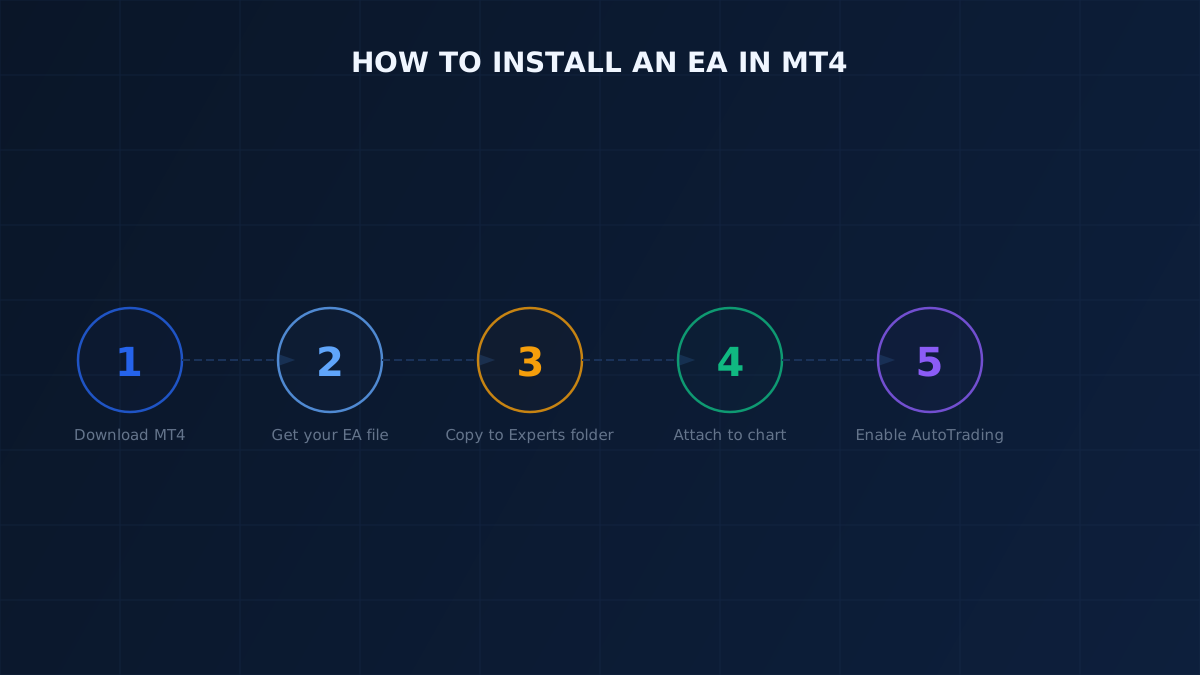
Many traders want to start with automated trading. Loading an EA in MT4 is really easy, but starting from scratch without any help can be hard. This is why we wrote this article. Let's start by learning how to load an EA in MT4 — and then it will be time to learn how to code your own EA for MetaTrader 4.
Requirements to Install an EA in MT4 (MetaTrader 4)
In order to start installing EAs in MT4, a few things are required. Let's list them:
- Install MetaTrader 4 and open a trading account with an Online Broker
- Get an Expert Advisor to be loaded in MetaTrader 4. If you do not have one, use a free Expert Advisor from BacktestMarket
- Follow the instructions shown below
Guide: How to Install a MT4 EA
Step 1 — Install MetaTrader 4
Installing MetaTrader 4 is not that straightforward, since MetaQuotes no longer lets you download the platform directly. The standard way to get it is to open an account with an Online Broker, which will provide you with a branded installer.
The other option is to download MetaTrader 4 directly without any broker branding. Click Download in the image below to get the official MT4 installer.
Step 2 — Get a Free MT4 EA
In order to install an Expert Advisor in MetaTrader 4, you can use any Expert Advisor from the web or code your own. MetaTrader 4 ships with a couple of sample Expert Advisors by default.
We have free EAs for MetaTrader 4 that you can download from our Expert Advisors Portfolio.

Step 3 — Transfer Files to the MT4 Experts Folder
- Go to the location where you saved the MT4 EA downloaded in Step 2
- Copy the MT4 EA, then open the correct MT4 Experts folder by following these steps:
- Open the MetaEditor, right-click on Experts in the left-side menu, and click Open Folder ("Apri Cartella" in the image below). This will reveal the correct path where your MT4 EA files must be placed
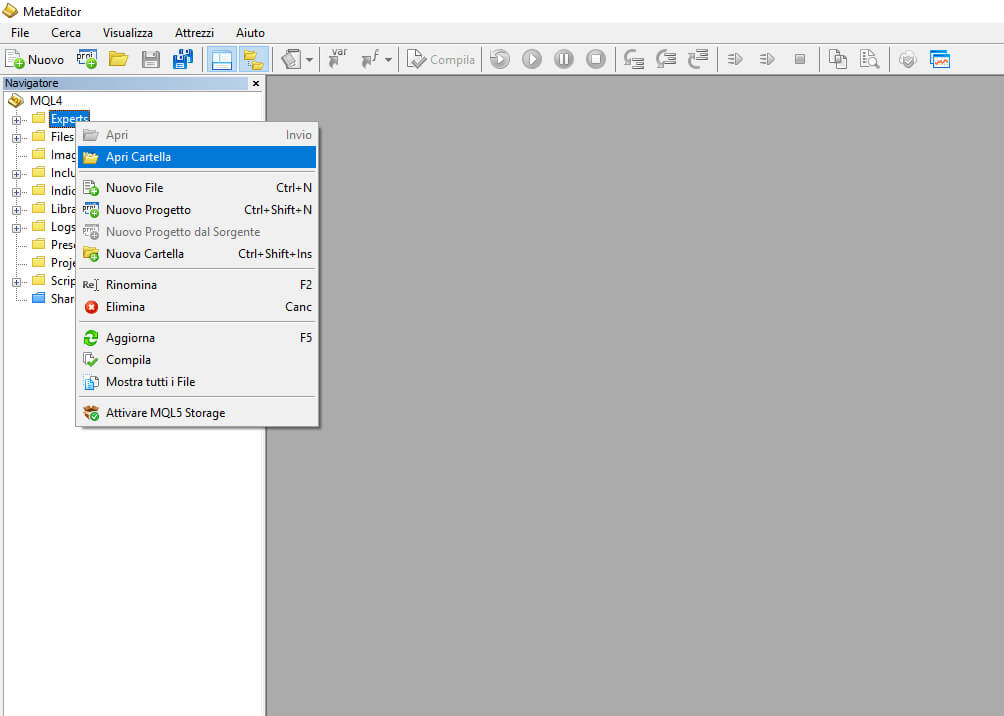
- Paste the files into the Experts folder. If a pop-up requesting admin permission appears, click Continue.
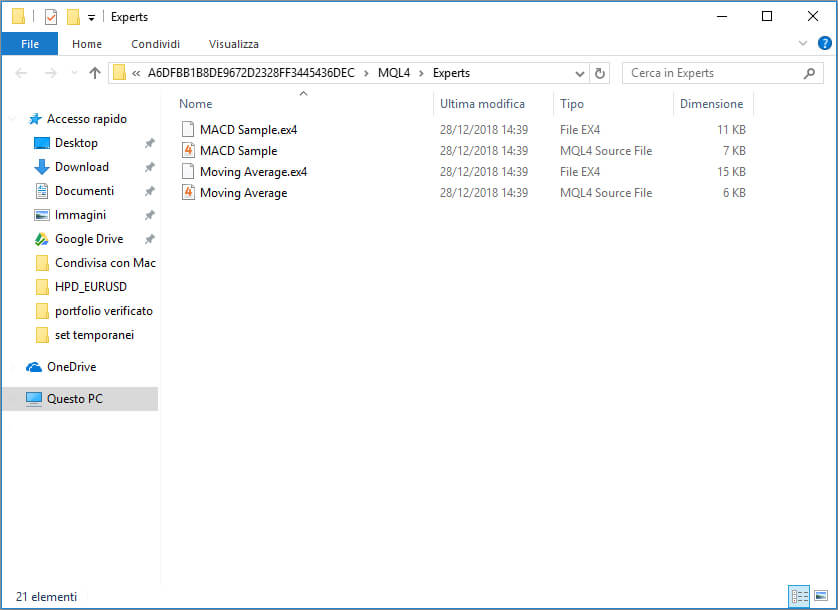
Step 4 — Load the EA onto the MT4 Platform
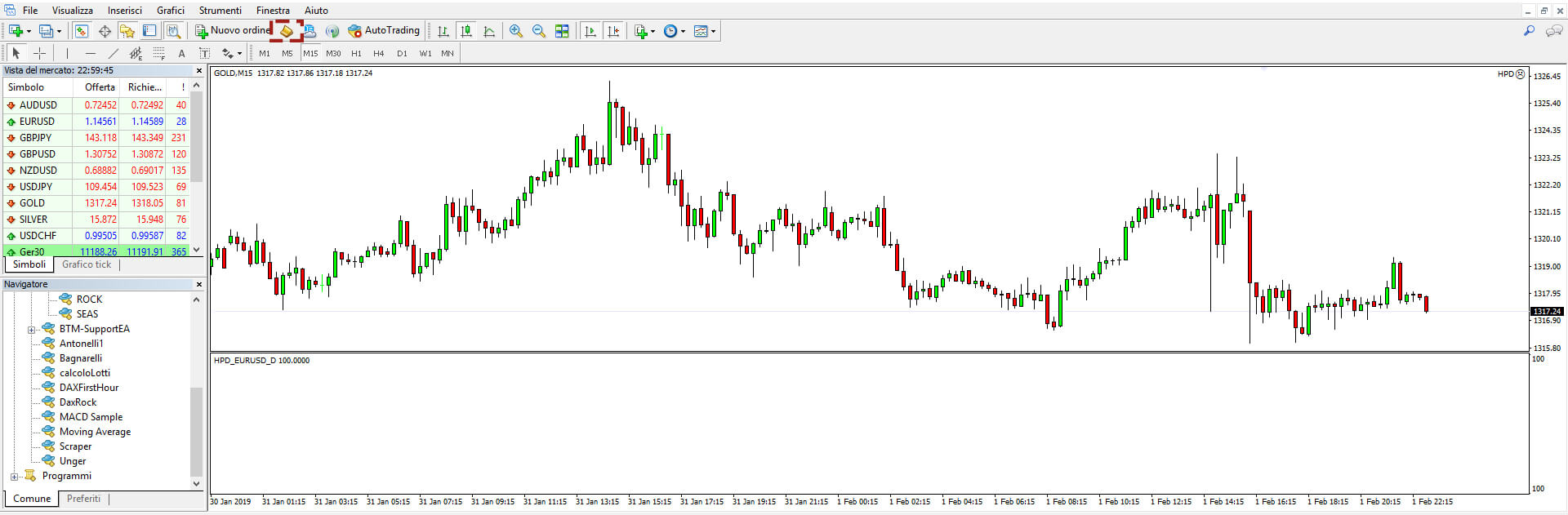
- Launch your MT4 Platform
- In the Expert Advisors section under the Navigator pane (bottom-left of the platform), click the + sign — the available EAs will be listed there. You should be able to find the EA you just placed in the Experts folder
- Click the EA you want to install and drag it onto one of the charts on your platform
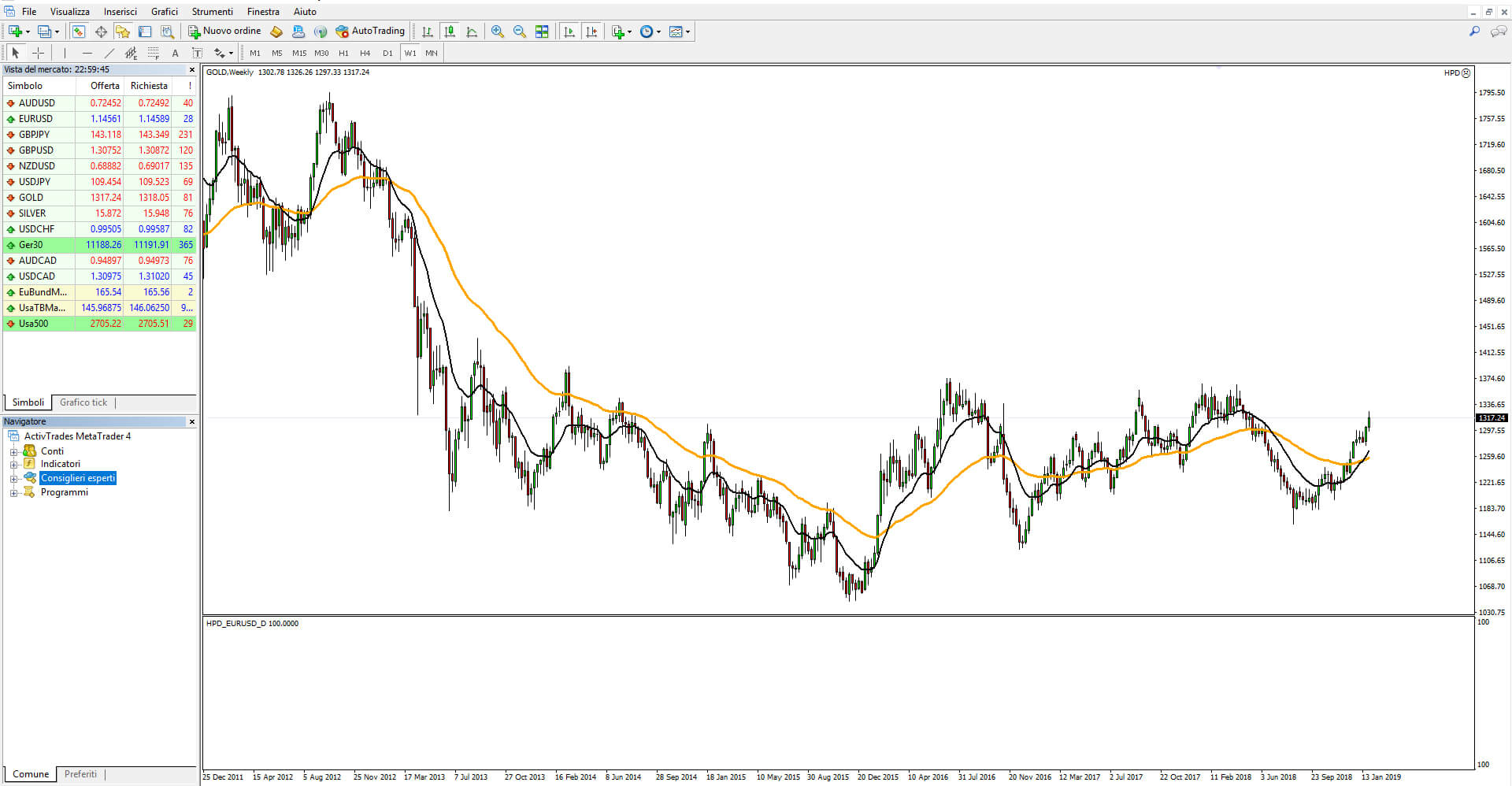
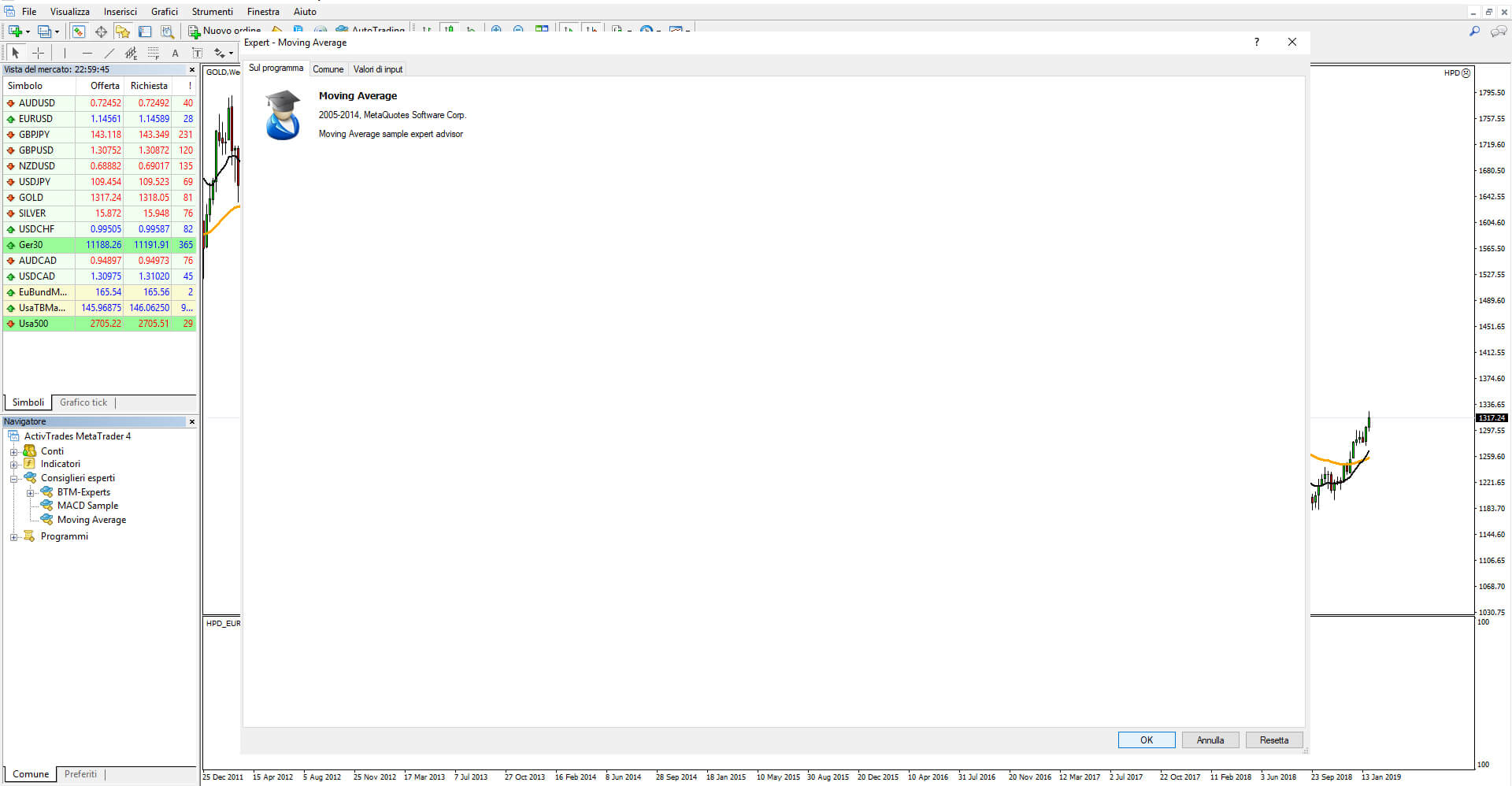
Step 5 — Adjust the Settings
- A pop-up window will appear showing the settings of your EA for MT4
- Click OK to start running your EA
Please remember that Expert Advisors must be enabled for your MT4 EA to place trades in the market. To activate Expert Advisors in MT4, click the Expert Advisors button in the centre of the MT4 toolbar. It will show a red stop icon when disabled — after clicking it you should see a green play button, confirming that automated trading is active.
Remember also that trading with EAs involves risk and you need to know exactly what you are doing. We strongly suggest using demo accounts for initial testing before going live.