Hello, I am Christian from traders.fi and I am going to show you how to import data in NinjaTrader. Just follow these steps.
I had some issues importing data into NinjaTrader the other day. The problem was very simple: the filename contained unsupported characters (-1 in my case). I thought I'd write this guide for anyone who has run into the same issue.
First of all, you will need data for backtesting. In this example I use 1-minute intraday DAX data downloaded from BacktestMarket and converted to NinjaTrader format with the BTM Converter tool.
Step 1 — Rename the Data File if Needed
Before importing, check the filename. NinjaTrader does not support certain characters — in particular -1 or other special characters in the file name. Rename the file to remove them if present.
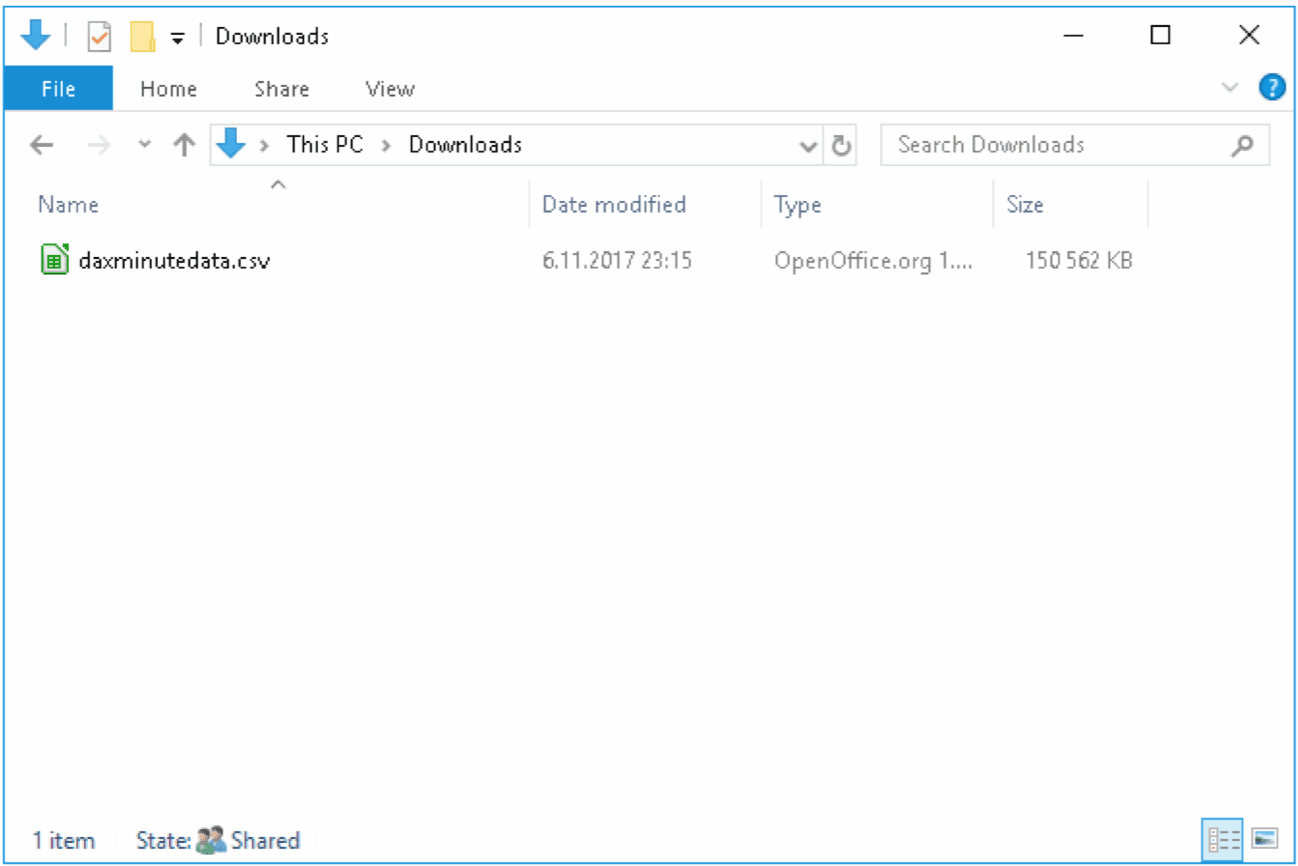
Step 2 — Open the Historical Data Import
Inside NinjaTrader, navigate to:
Tools → Import → Historical Data
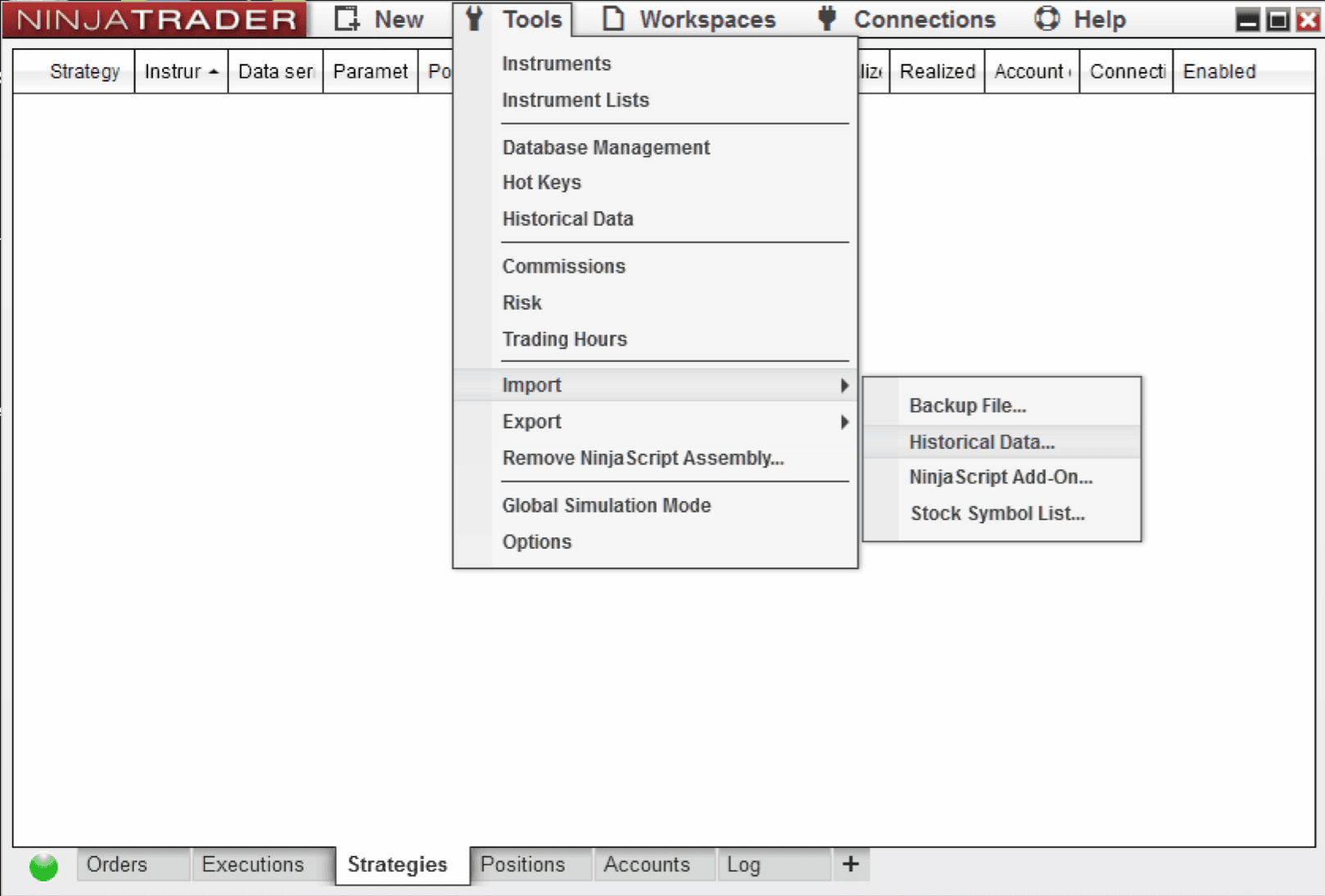
Step 3 — Enable Day Bar Generation
In the import dialog, check the option "Generate Day bars from imported tick or minute data", then click the Import button to proceed.
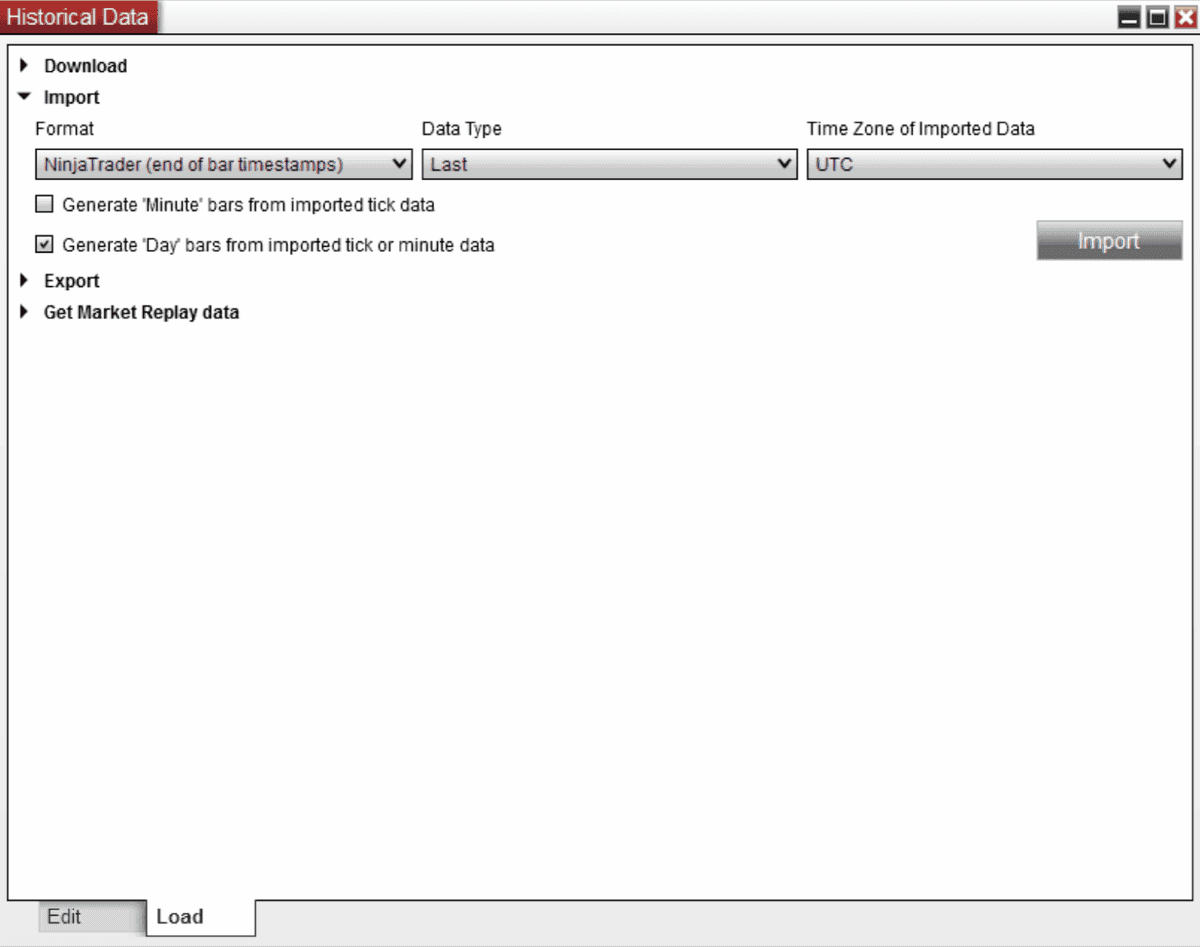
Step 4 — Browse to the Data File
Click the folder icon to browse to the location where you downloaded and extracted the dataset. Select the data file and click Open.
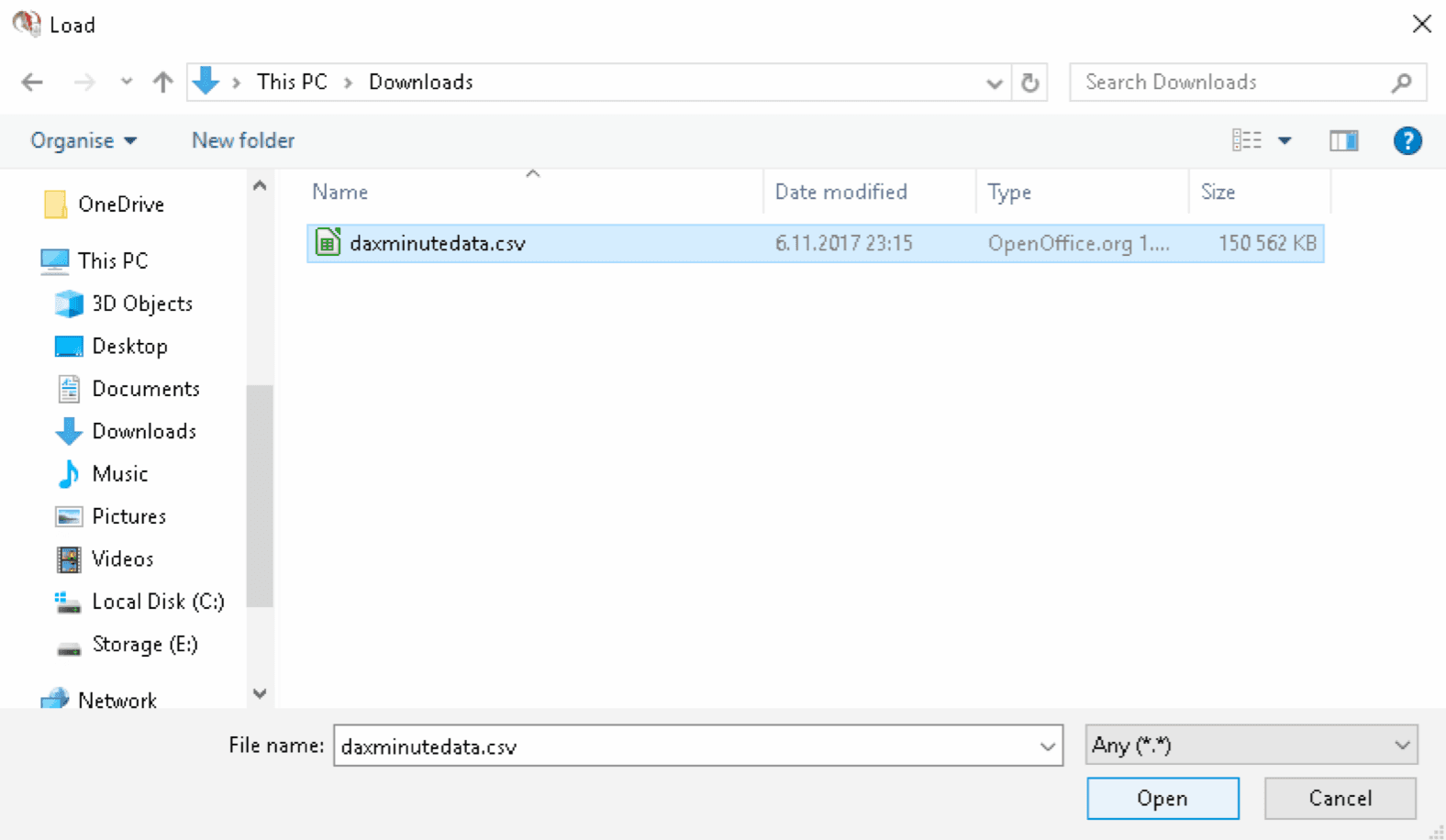
Step 5 — Verify the Import
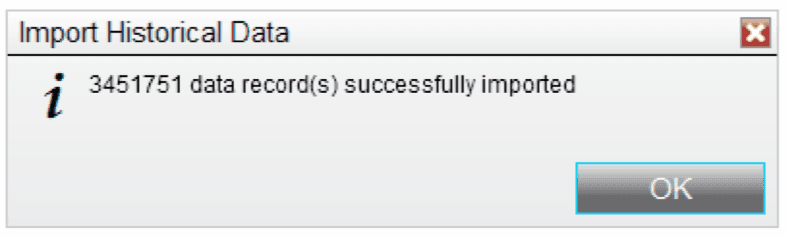
After a successful import, NinjaTrader will display a notification showing the number of records imported. Confirm the count looks correct for the instrument and timeframe you loaded.
Disclaimer
BacktestMarket is an independent data provider and has no affiliation with NinjaTrader LLC. The data and guides provided are for educational and research purposes only and do not constitute investment advice or trading recommendations.