
This article shows how to load data in MT5 through 4 easy steps to import data in MetaTrader 5. MT5 historical data import is a little bit different from the MT4 one. We will show here how to import data of a symbol (Symbol_X, i.e. EurUsd) so that you can be able to load long history data for your backtesting.
Following the 4 steps to import data in MetaTrader 5:
Step 1 — Open MetaTrader 5 and Go to the Symbol List (Ctrl+U)
Loading MetaTrader 5 historical data is as easy as the MetaTrader 4 historical data loading but it's a different procedure. Let's start opening MetaTrader 5 and click View → Symbols or just press Ctrl+U.
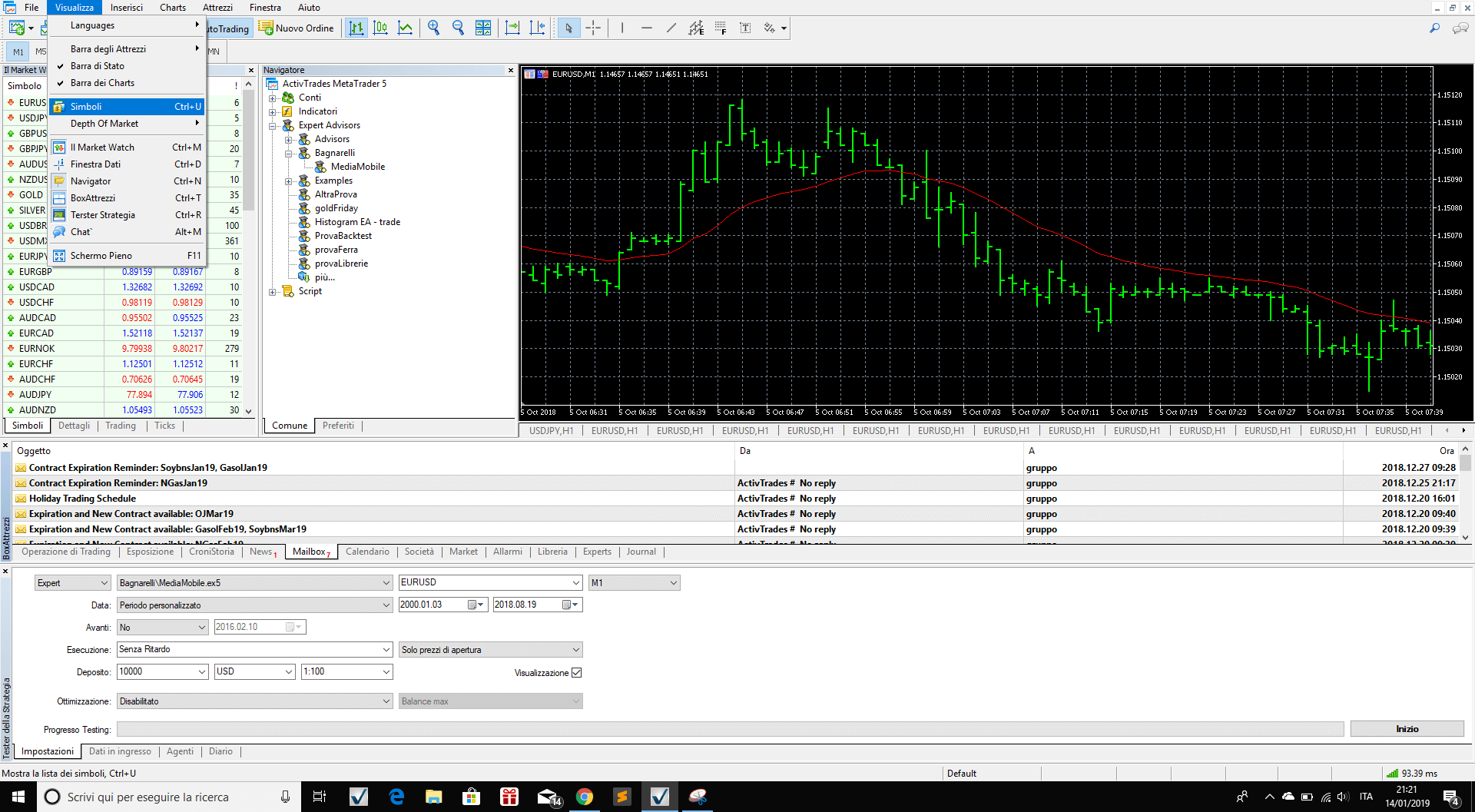
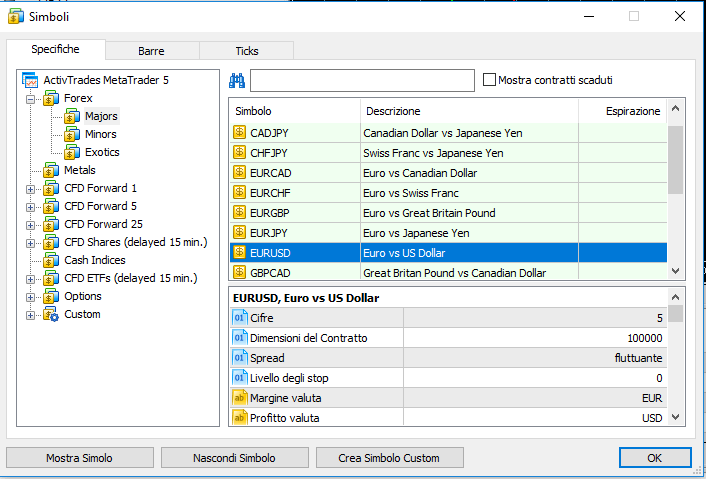
Step 2 — Pick a Symbol (e.g. EURUSD) and Click "Create Custom Symbol"
Once you are in the symbol list, select the financial instrument you want to load data into, so that you can create an exact copy of that symbol and load data in there. Click on Create Custom Symbol.
Step 3 — Choose the Symbol to Copy From and Set the Group Path
Once the custom symbol is created, if you forgot to select the right symbol to copy, you can still change the symbol characteristics by selecting the symbol from the "Copy From" dropdown at the bottom left of the Custom Symbol window.
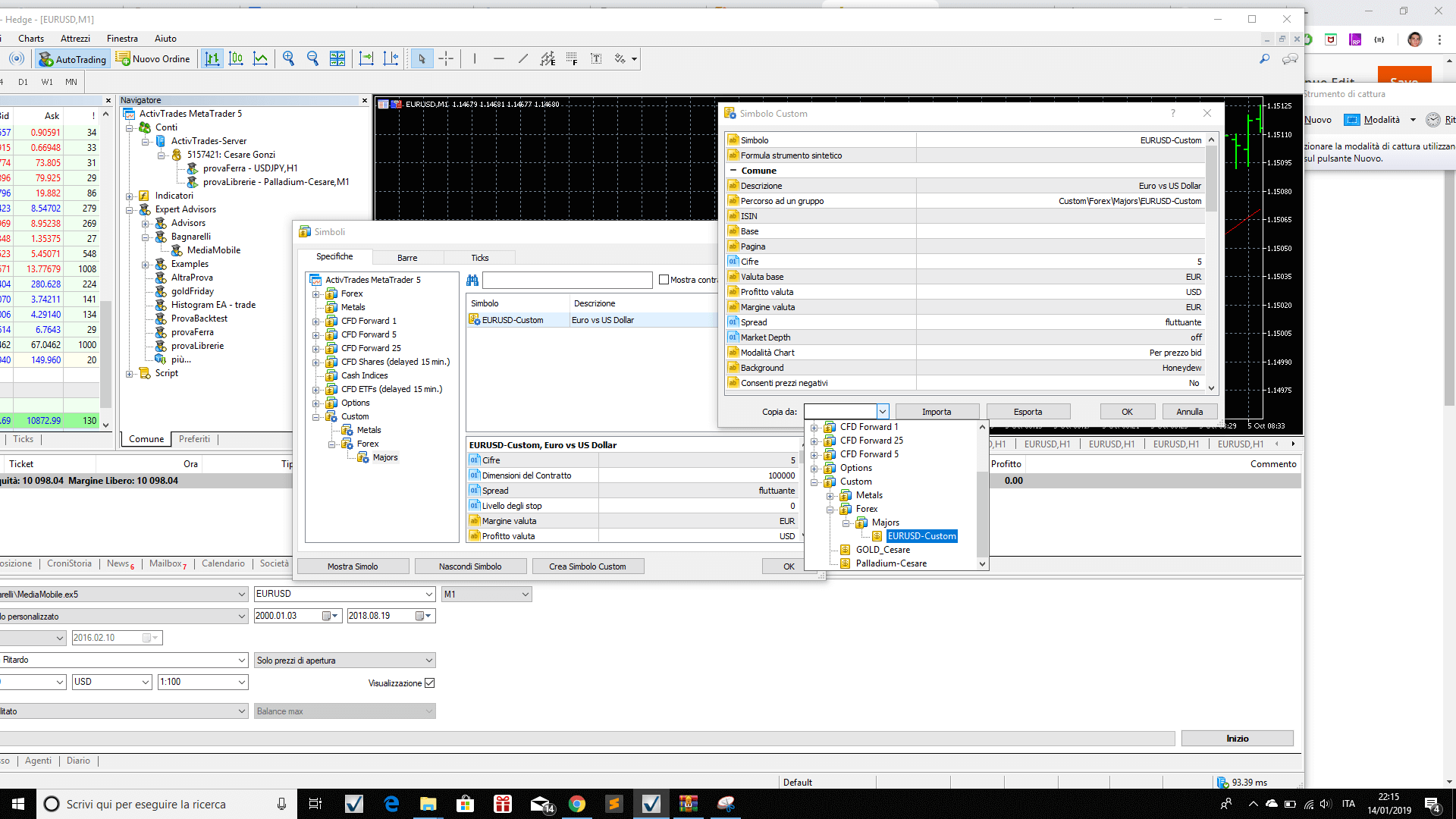
This will copy all the properties of that symbol (contract size, tick value, digits, etc.). Then change the Group Path — for example from Forex\EurUsd to Custom\EurUsd-custom — and click OK.
The following image shows that your custom symbol has been created. Now you just need to load data into it.
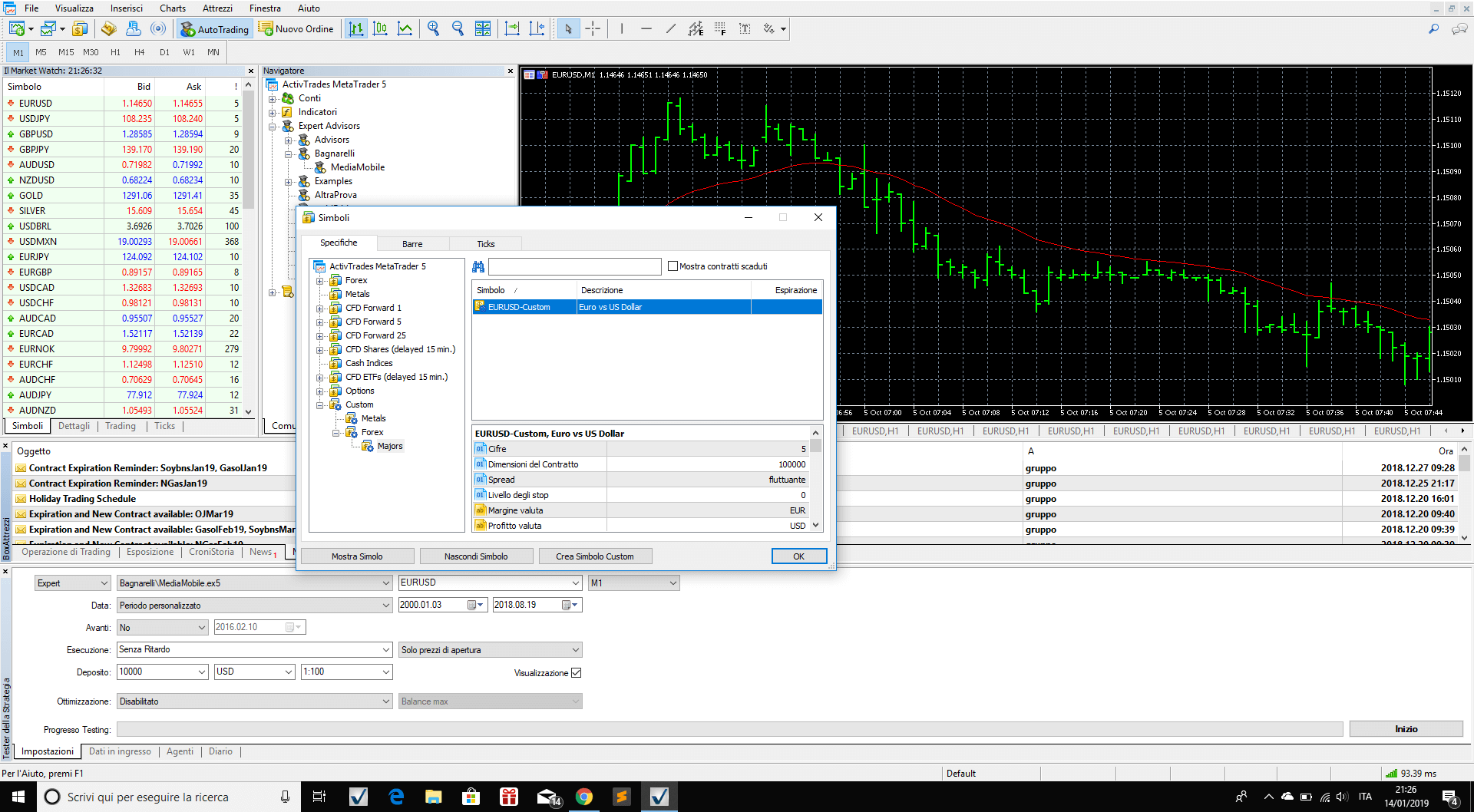
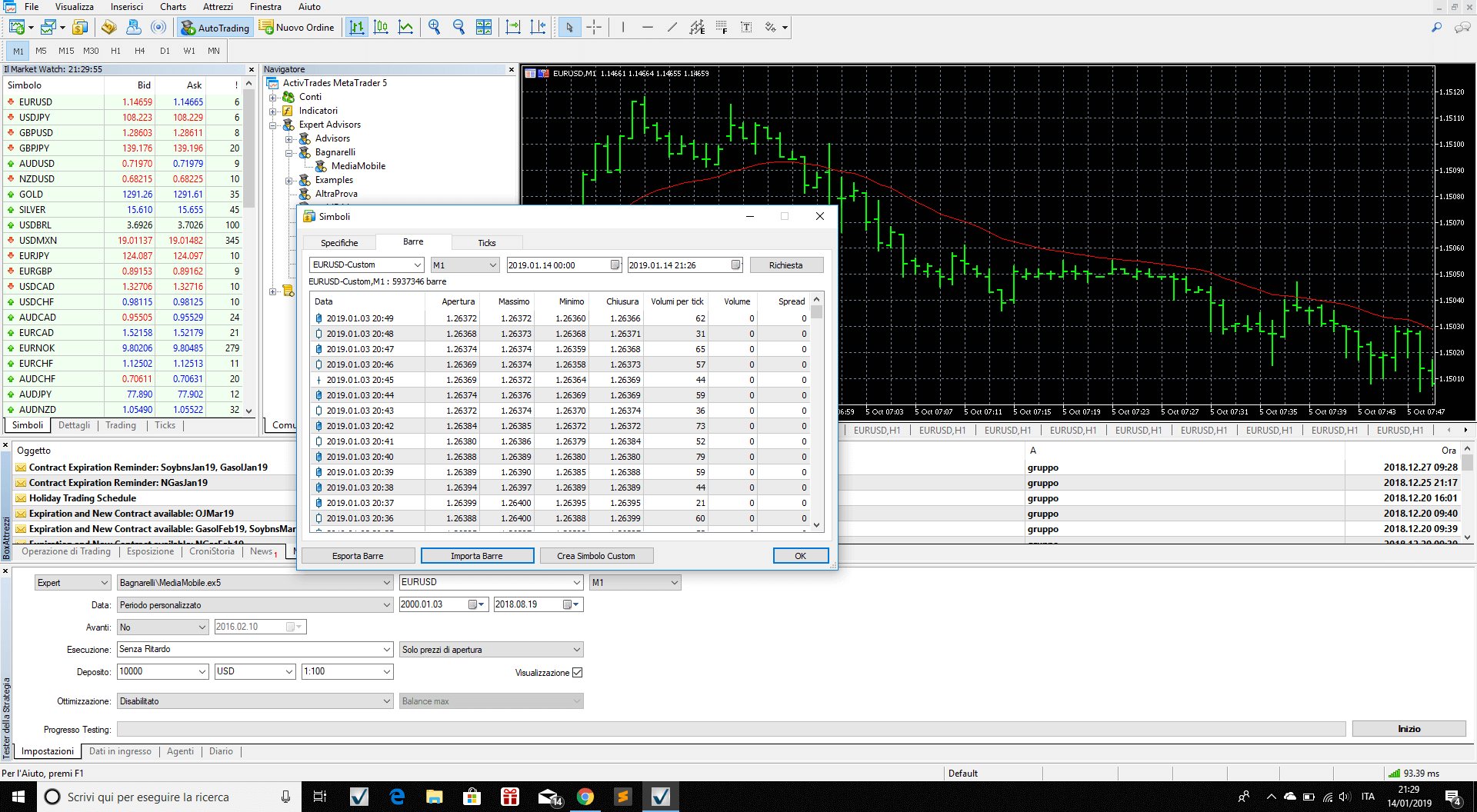
Step 4 — Use the "Bars" Tab and Click "Import Bars" to Import 1-Minute Data
Now go to the Bars tab at the top of the Symbol window after having selected the custom symbol you want to populate. Click the Import Bars button to open the Import Data window.
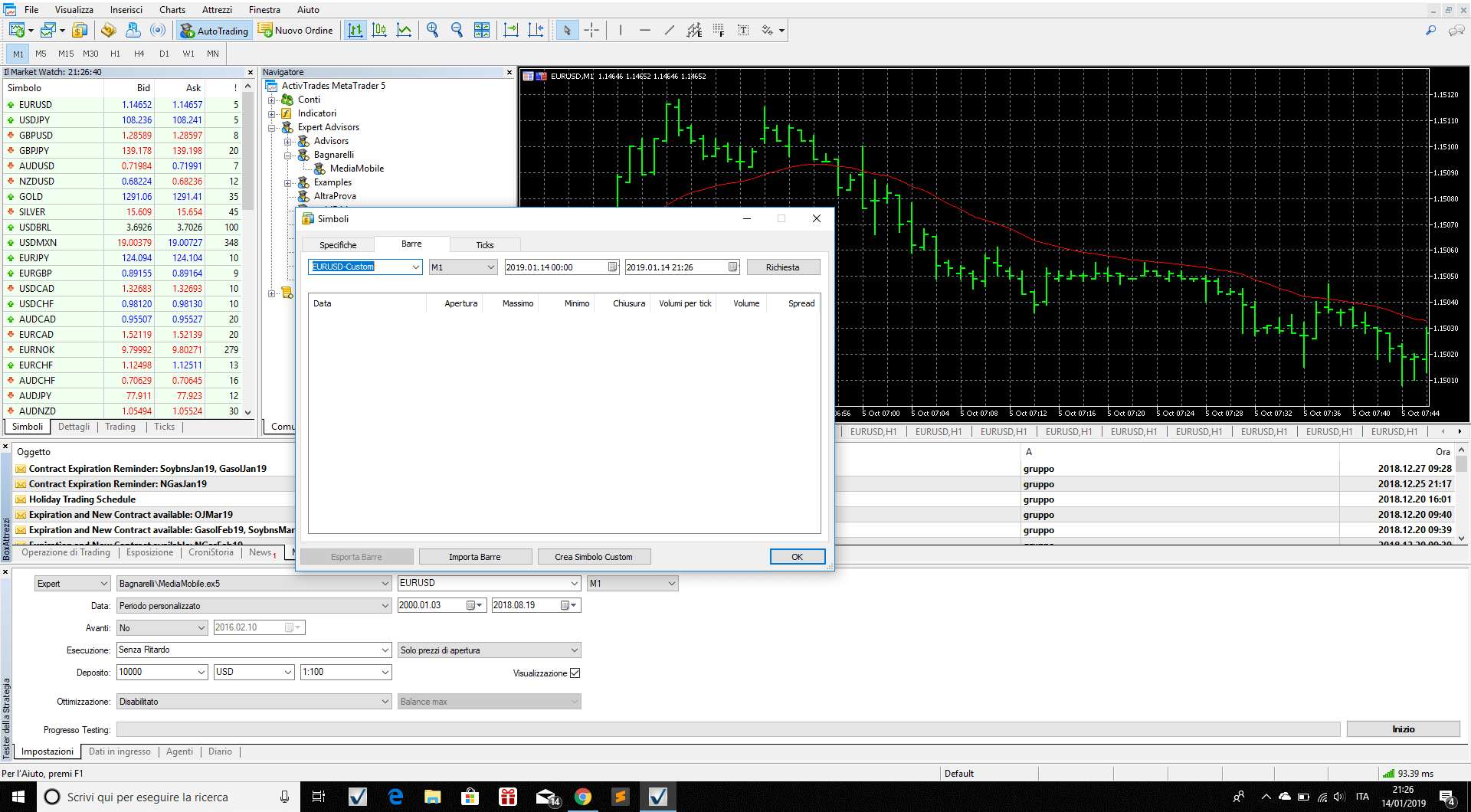
Click Browse to select the dataset you are interested in, or visit our intraday data page to pick one.
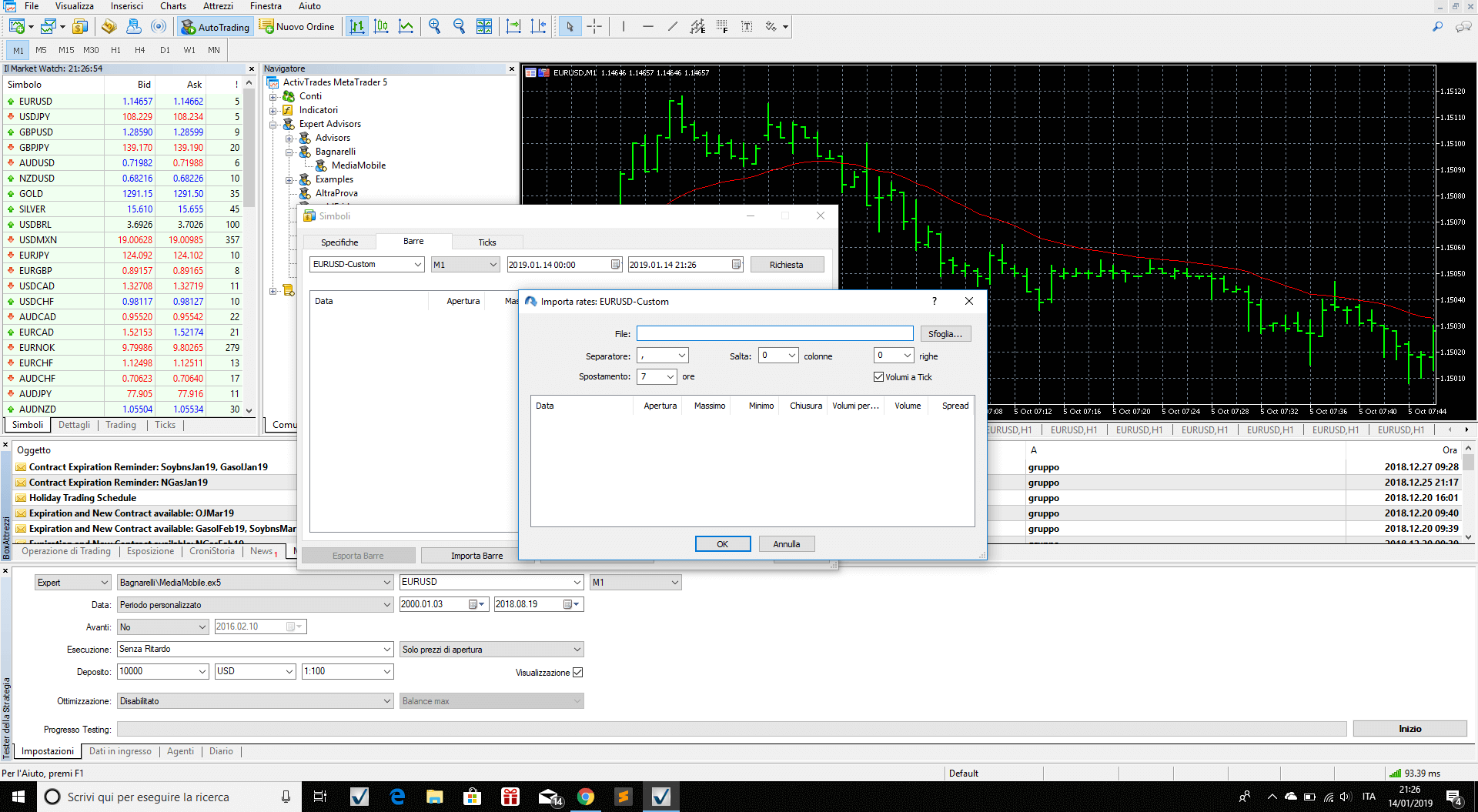
If you purchased data from BacktestMarket, please remember to check the time shift. Our data is generally in Chicago timezone (GMT−5/−6), so if you want to convert them to CET timezone (Rome/Amsterdam/Berlin, GMT+1/+2) shift them by +7 hours.
Use ; as separator, skip 0 columns, skip 0 rows, tick volumes: yes.
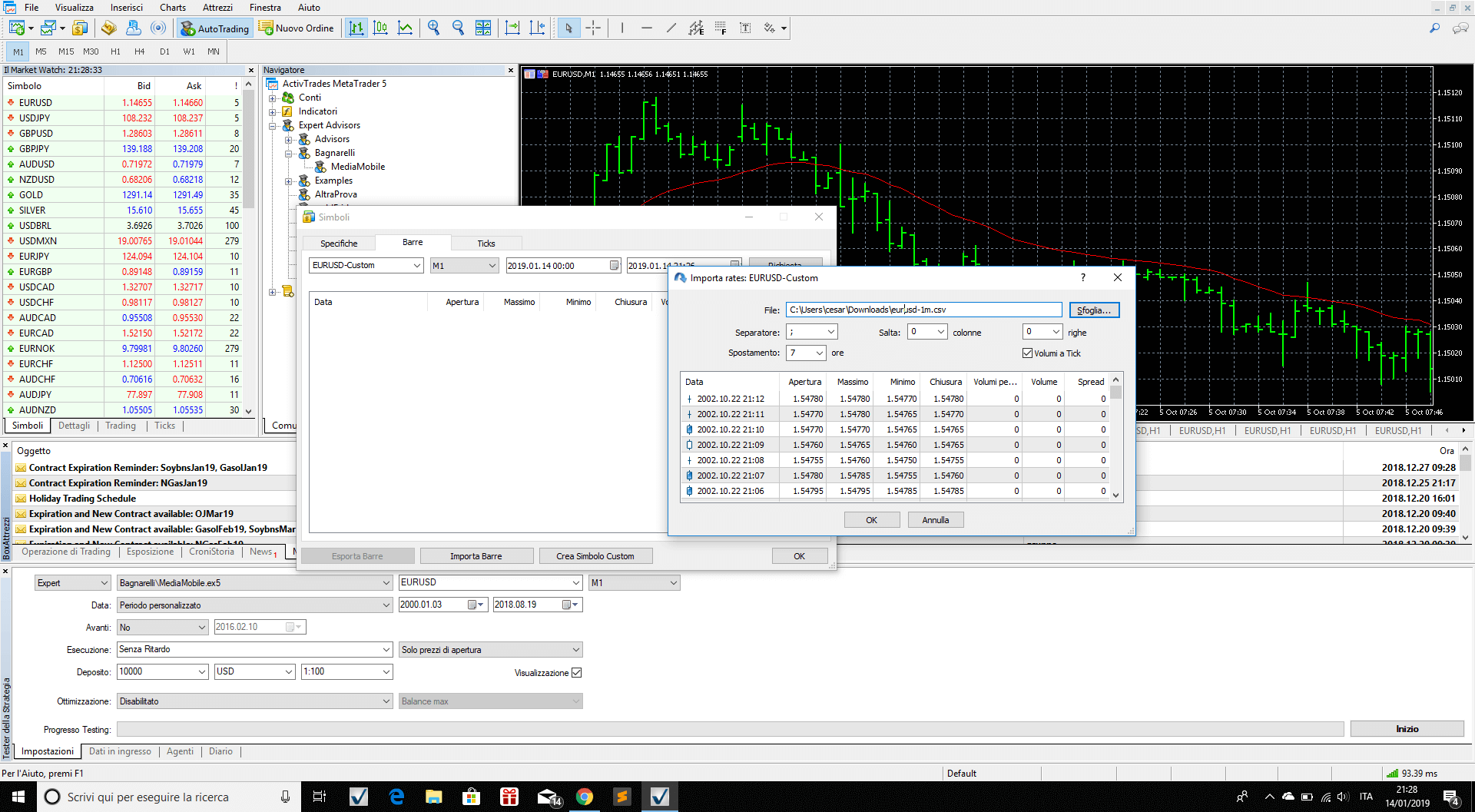
Now click OK and start loading data. MT5 needs approximately:
- ~2 hours 20 minutes to import 300 MB of data (EURUSD M1, ~6,000,000 bars)
- ~1 hour 6 minutes to import 190 MB (Gold H1, ~3,800,000 bars)
- ~13 seconds for 70,000 bars (Gold H1)
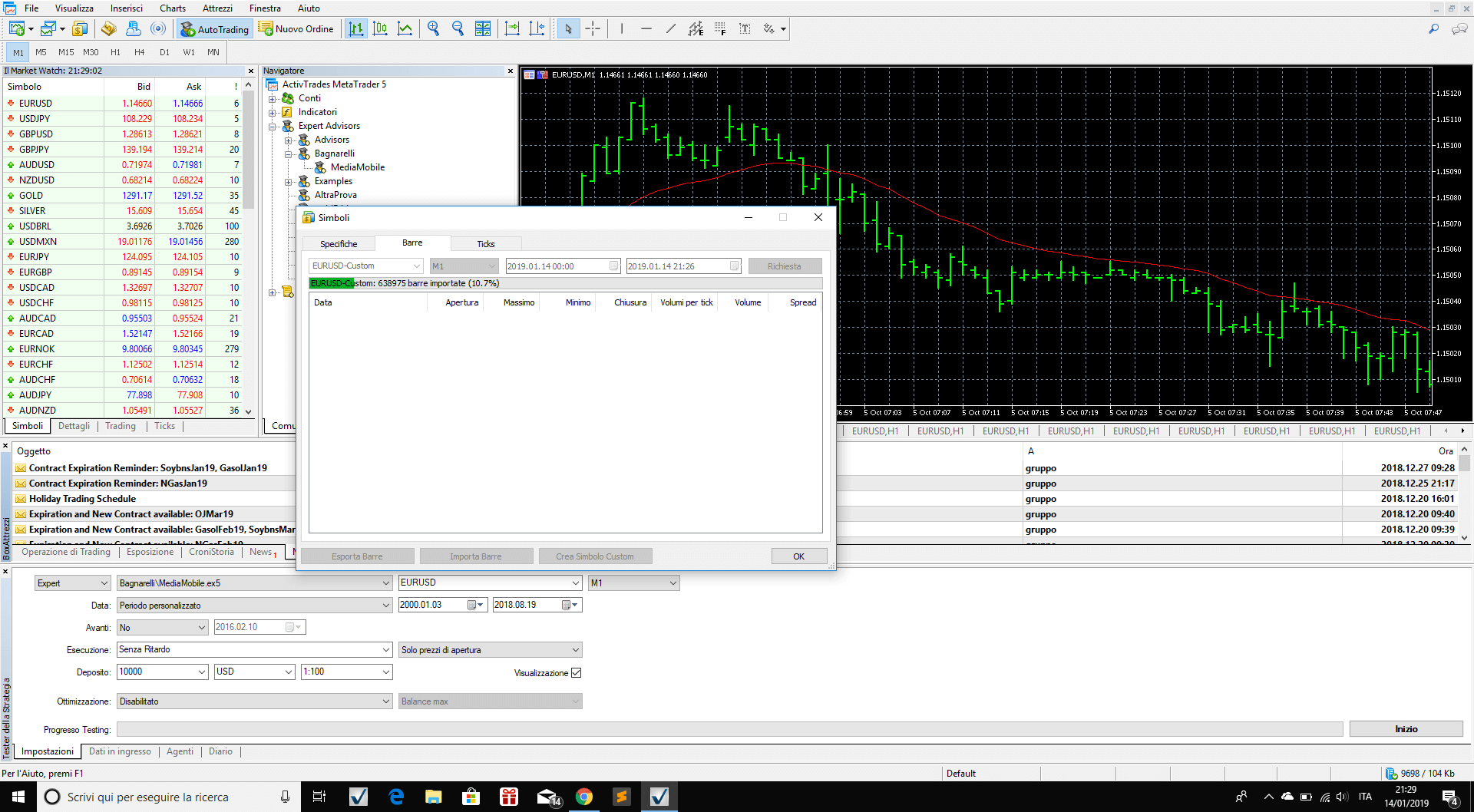
Click OK again and your data is loaded.
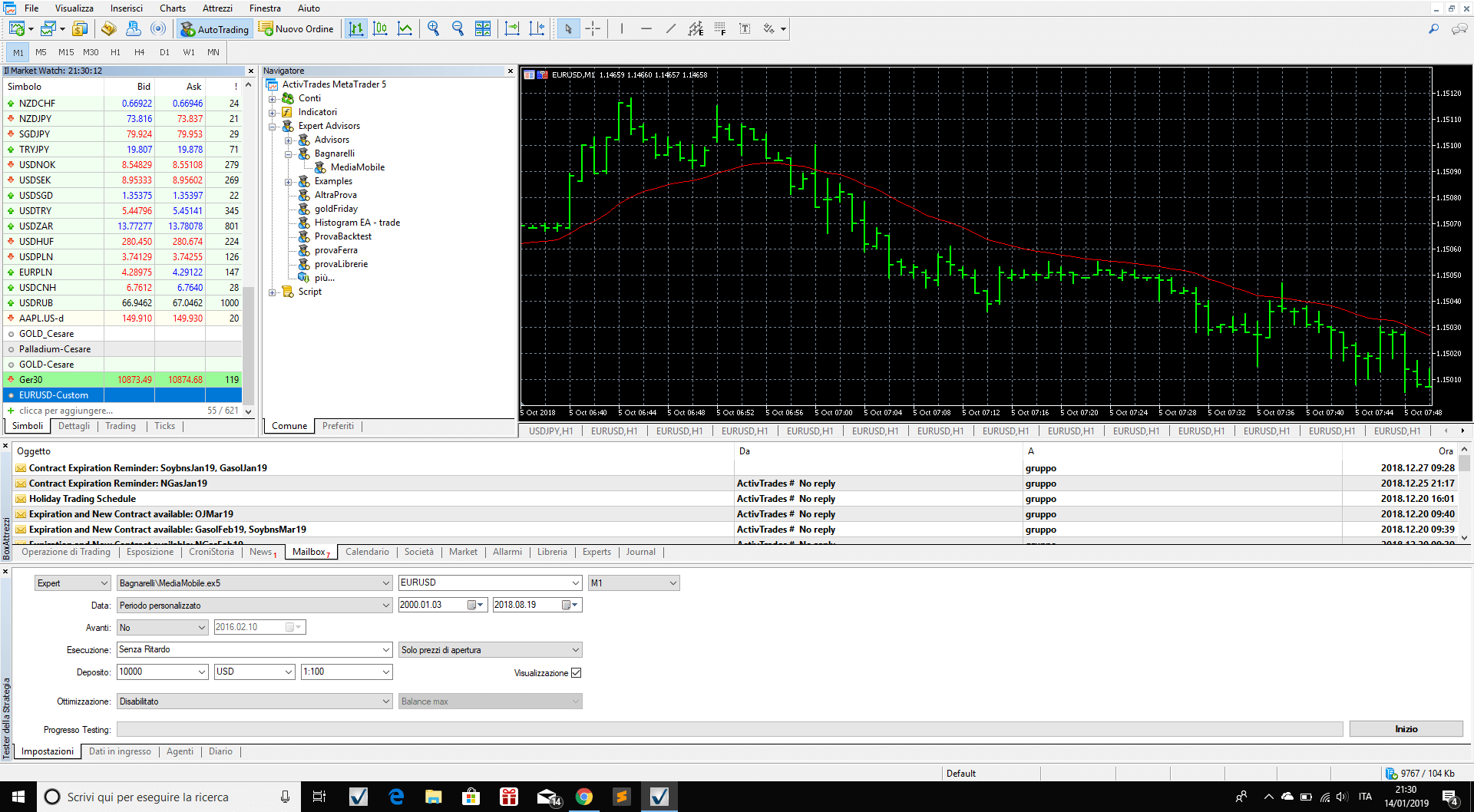
Now you can see your custom symbol in the MT5 Market Watch.
Conclusions
This short article shows new MetaTrader 5 users how to load data in the MT5 platform through 4 easy steps.
One important detail to understand about how MT5 treats data across different timeframes:
If you import:
- EURUSD daily data from 1980 to today
- EURUSD 1-minute data from 2002 to today
Then MT5 will:
- Use the daily data for the period 1980–2001
- Use the 1-minute data for the period 2002 to today
This means that importing a combination of timeframes gives you the maximum history depth possible: long-term daily coverage plus high-resolution intraday data for your backtest window. The Strategy Tester will automatically use whichever resolution is available for each period — so the more data you import, the more accurate and complete your backtest results will be.
For best results, import M1 data for the period you intend to test on, and rely on the native broker data (or separately imported daily/weekly bars) for the years before your M1 data begins.