

An HST file is MetaTrader's binary history file. It holds the bars (time, open, high, low, close, volume) for one symbol on one timeframe. In MetaTrader 4, historical quotes are stored in files named SSSSSSPP.hst, one per symbol and period, and the terminal uses them to draw charts and test strategies. "HST" is simply the extension for "history". It has nothing to do with the Canadian sales tax that dominates the search results for this term.
This guide covers what is inside the file, the difference between version 400 and version 401, how to bring HST data into MT4 and MT5, and how to check a file before you trust a backtest on it.
TL;DR
- An HST file is a binary container: a 148-byte header followed by fixed-size bar records, one file per symbol and timeframe.
- Version 400 records are 44 bytes. Version 401 records are 60 bytes and add spread and real volume. Read the version field before parsing.
- In MT4 you can import history through the History Center. In MT5, custom symbols can import HST files, with one-minute bars as the base data.
- Duplicate timestamps, wrong time shifts and gaps in the one-minute base data are the most common reasons an import goes wrong.
- Check bar counts, ordering and gaps before running any serious backtest.
Table of Contents
- What an HST file is and what the name means
- Which platforms use HST files
- The structure: header first, then records
- Version 400 versus 401 at a glance
- How to open and import HST data
- Common compatibility problems
- How to check HST data before you backtest
- Bar data versus tick-level detail
- Our perspective
- Skip the conversion step
- FAQ
- Sources
What an HST file is and what the name means
MetaTrader keeps its price history in a history folder inside the terminal's data directory. Each file is named after the symbol and the timeframe in minutes. A file called EURUSD60.hst, for example, holds hourly EUR/USD bars, and EURUSD1.hst holds the one-minute bars. The terminal reads these files when it draws a chart and when the Strategy Tester runs an Expert Advisor.
The file is not text. You cannot open it in a spreadsheet and read rows. It is a packed binary structure, which is why people ask about the "format": to read, write or repair one, you have to know exactly how many bytes each field occupies.
The naming matters too. The period in the filename is the timeframe in minutes, and the same number is stored inside the header. If the two disagree, the terminal can behave unpredictably, so keep them in sync when you generate files yourself.
Which platforms use HST files
MT4 is the native home of the format. Its History Center is the built-in tool for browsing, importing and exporting stored quotes.
MT5 stores its price history differently. It keeps its own internal databases, and price history is held primarily as one-minute bars, with other timeframes generated from them. HST still plays a role, though: in MT5, custom symbols can import price history from MetaTrader history files (HST) as well as from text files. So an HST file made for MT4 can serve as a source for an MT5 custom symbol. Our guide to MT5 custom symbols walks through creating one and loading your data.
Compatibility across MT4 builds is also reasonable. MetaQuotes stated, when it introduced the new MQL4, that compiled programs working with .hst files keep their compatibility on newer terminal builds, and that both the old and new history formats are supported.
The structure: header first, then records
Every MetaTrader HST file has the same overall shape: a fixed header, then a continuous run of bar records until the end of the file. There is no index and no footer. The number of bars is the file size minus the header, divided by the record size.
The 148-byte header
A community reference compiled from the old terminal help file and the newer period converter lists the header as 148 bytes in total. The fields are:
| Field | Size | Meaning |
|---|---|---|
| version | 4 bytes | Database version, 400 or 401 |
| copyright | 64 bytes | Copyright or provider text |
| symbol | 12 bytes | Symbol name |
| period | 4 bytes | Timeframe in minutes |
| digits | 4 bytes | Number of digits after the decimal point |
| timesign | 4 bytes | Time the database was created |
| last sync | 4 bytes | Time of the last synchronization |
| unused | 52 bytes | Reserved space |
The first seven fields add up to 96 bytes. The rest of the 148 is reserved and normally zero. The Python reader documented by a developer pulls out the same set: version, copyright, symbol, period, digits, creation time and last-sync time.
Two fields deserve attention. The digits value tells you how to interpret the prices: the prices are stored as plain floating-point numbers, but a five-digit EUR/USD file and a three-digit USD/JPY file only make sense with the right precision. The period field is what lets you confirm that a file really contains the timeframe its name claims.
Version 400 records: 44 bytes
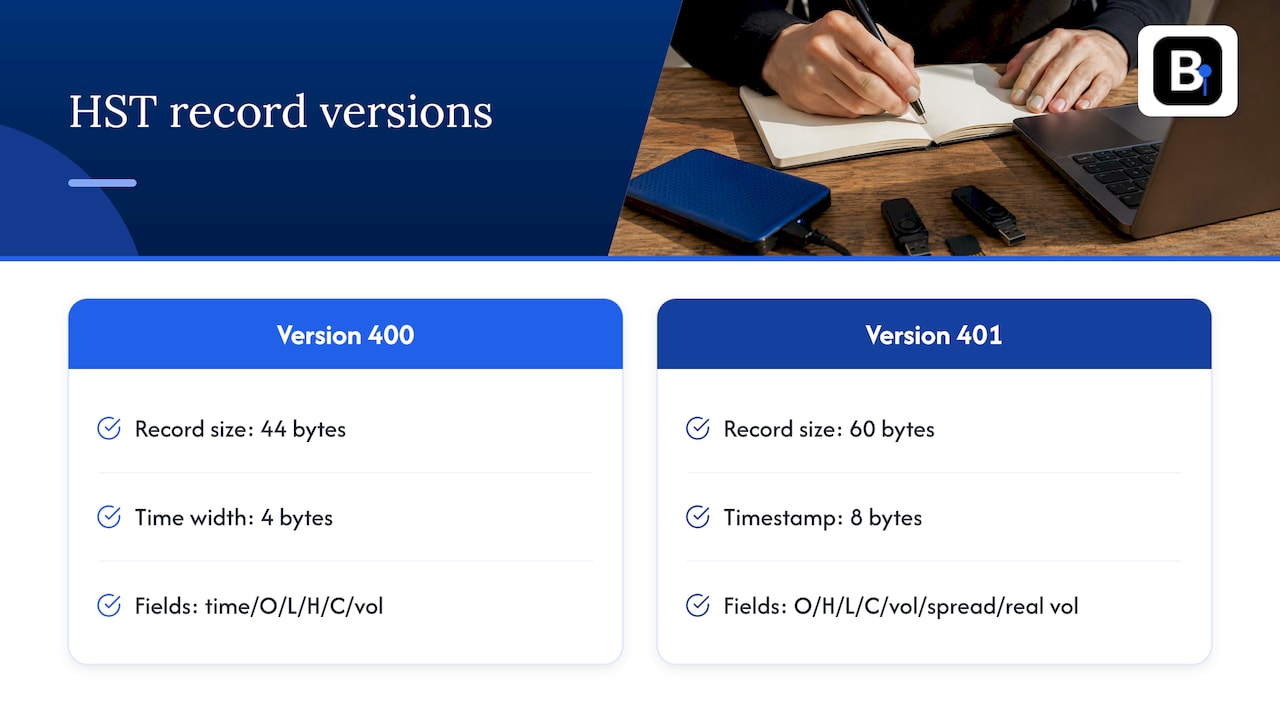
The original layout, used as of MT4 Build 509, stores each bar as 44 bytes containing the time in seconds, then open, low, high, close and volume. Note the unusual order: open, low, high, close. Anyone who assumes the usual open-high-low-close order will end up with swapped highs and lows, which quietly corrupts every indicator calculated from the file.
The breakdown: a 4-byte time, followed by five 8-byte double-precision values (open, low, high, close, volume). That is 4 + 40 = 44 bytes.
Version 401 records: 60 bytes
From MT4 Build 574 onward, the format moved to version 401. The header is the same size, but each record becomes 60 bytes with timestamp, open, high, low, close, volume, spread and real volume. The order is now the more familiar open, high, low, close.
In practice that means an 8-byte timestamp, four 8-byte prices, an 8-byte tick volume, a 4-byte spread and an 8-byte real volume. The wider timestamp removes the old limit of a 4-byte time value, and the extra fields carry information the older layout simply could not.
Why you must read the version field
The same source is explicit: an implementation has to choose the record layout from the version in the header rather than assume every file is the old 44-byte type. If you hard-code 44 bytes and open a version 401 file, the parser will read garbage from the second record onward, and the numbers may still look plausible enough to fool you for a while.
A quick sanity test: subtract 148 from the file size and divide by the record size for the version you detected. The result must be a whole number. If it is not, the file is truncated or the version is wrong.
Version 400 versus 401 at a glance
| Version 400 | Version 401 | |
|---|---|---|
| Introduced | Used as of MT4 Build 509 | MT4 Build 574 and later |
| Header | 148 bytes | 148 bytes |
| Record size | 44 bytes | 60 bytes |
| Field order | Time, open, low, high, close, volume | Time, open, high, low, close, volume, spread, real volume |
| Build support | Kept for compatibility | Current MT4 format |
Build and version details come from the community reference mentioned above. Because that reference is community-maintained, treat it as a map and confirm against a file you know is good before building tools around it.
How to open and import HST data
The HST file itself is not meant to be edited by hand. The practical routes are these.
In MT4: the History Center
The History Center lets you import historical data, after which the terminal shows charts and tests Expert Advisors on it. When importing, you can set parameters such as the separator, time shift, number of columns to skip and how volume is handled. The usual steps:
- Close any chart or tester run using the symbol.
- Open Tools, then History Center (F2).
- Select the symbol and the 1 Minute period.
- Click Import and choose your file.
- Confirm the preview, then let the terminal build the bars.
- Restart the terminal so the higher timeframes are rebuilt.
For a detailed walk-through with screenshots, see our guide on importing historical data in MetaTrader 4 and 5 and the specific one for importing CSV data into MT4.
If the History Center refuses a file or shows an error, work through the fixes in MT4 History Center: 5 safe fixes before file repair before deleting anything.
In MT5: custom symbols
Create a custom symbol, open its Bars tab and import. The import dialog accepts text files and MetaTrader history files, with the same kind of separator, skip and time-shift options. Our step-by-step article on loading data in MT5 covers the full routine.
Developers can go further in code. The MQL5 function CustomRatesReplace updates a custom symbol's history using the MqlRates structure, which is handy when you generate bars from your own pipeline instead of importing files.
Reading HST files in your own code
Because the layout is fixed, a short script can parse it. The logic is always the same:
- Read the first 148 bytes and unpack the version, symbol, period and digits.
- Pick the record size from the version (44 or 60).
- Check that the remaining file size divides evenly by the record size.
- Read records in a loop and map each to the right field order for that version.
- Convert timestamps from seconds since 1970 and decide explicitly which time zone they represent.
That last step is where most of the trouble starts.
Common compatibility problems
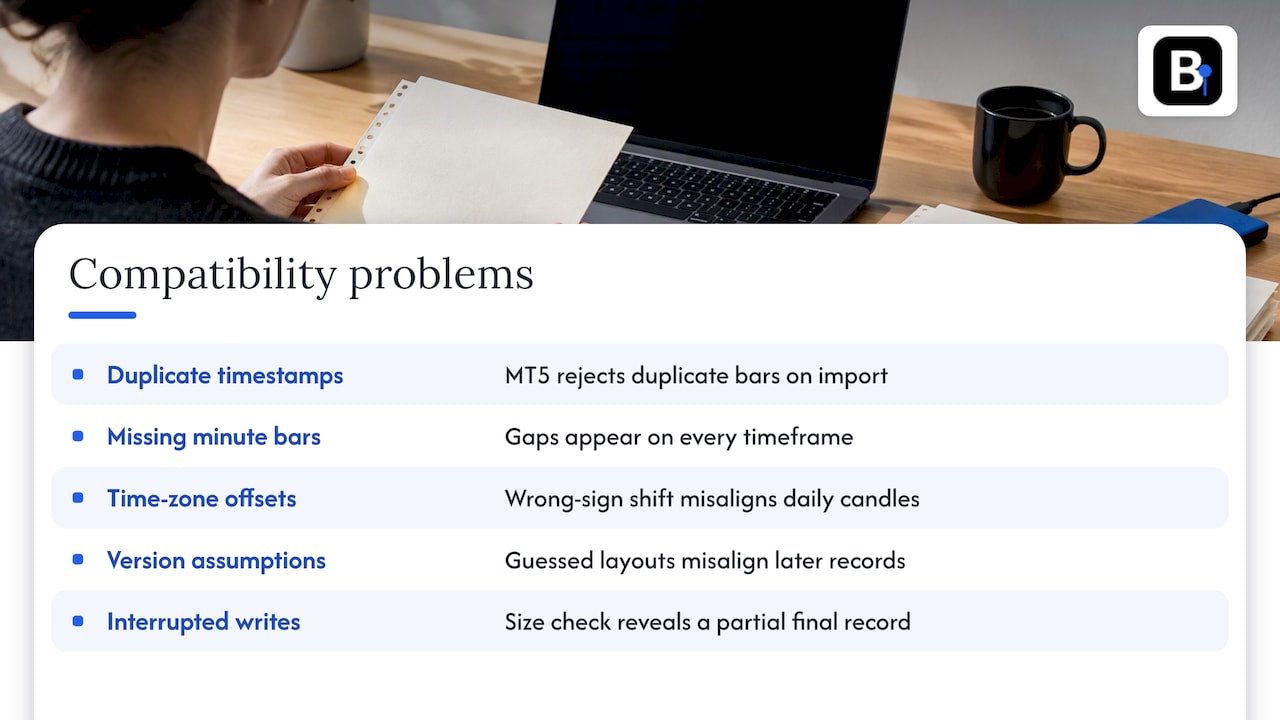
Duplicate timestamps. MT5 treats duplicate bars with the same time as errors on import, and data must be ordered from earlier to later. A file concatenated from two overlapping downloads is the classic cause.
Missing one-minute bars. In MT5, higher timeframes are generated from minute bars, so a gap in the one-minute base data shows up as a gap on every other timeframe. The MT5 help says imported data must meet specific format requirements such as the one-minute bar structure for base data. In MT4, missing stretches in the stored history are a frequent reason a backtest reports poor modelling quality. See fixing MT4 missing data for a recovery routine.
Time-zone offsets. HST files carry no time-zone label. Broker servers often run on a GMT+2 or GMT+3 schedule tied to New York close, while other sources deliver UTC. The import dialog's time shift option, expressed in hours, exists for this, but you must know what zone the source used. A shift of the wrong sign moves every bar by hours, and daily candles will no longer line up with the market's actual session.
Wrong version assumptions. As above, a parser or converter that guesses the layout will misalign every record after the first.
Bar limits. Even a perfect file can be cut short by terminal settings. If your charts stop loading early, check MT4 max bars.
Corruption from interrupted writes. If the terminal was closed while writing, the size check from the earlier section will usually reveal a partial record at the end.
How to check HST data before you backtest
A file that imports without an error is not necessarily a file you can trust. Before a strategy test, run a short audit. This checklist is our working method rather than an official procedure:
- Header check. Confirm symbol, period and digits match what you expect.
- Size check. File size minus 148 must divide exactly by the record size.
- Order check. Timestamps strictly increase, with no duplicates.
- OHLC logic. For every bar, high is at least as large as open, close and low, and low is no greater than them. Swapped fields from the 400 layout show up here immediately.
- Gap scan. On one-minute data for a liquid forex pair, list the gaps longer than a few minutes outside weekends and holidays. Investigate each cluster.
- Weekend and rollover check. Look at Sunday opens and Friday closes to confirm the time zone is what you think it is.
- Outlier scan. Flag bars whose range is many times the typical range. Genuine news spikes exist, but single-tick glitches do too.
- Spot-check against a second source for a few known events.
The point of all this is reproducibility. If two runs of the same strategy on the same data give the same result, you can compare changes in the strategy. If the data quietly differs between runs, you cannot. Our piece on reproducible MT4 backtesting data sources goes deeper, and the guide on how to backtest an Expert Advisor in MetaTrader 4 shows where data quality enters the process.
Bar data versus tick-level detail
An HST file stores aggregated bars, not individual trades or quotes. That is enough for the large majority of strategy tests, but it is worth understanding what you give up when you move from tick records to bars. Tick-level feeds record each print with its own timestamp and size; our reading on time and sales fields and Level 2 comparison explains what that kind of record contains. Minute bars compress all of that into one open, high, low, close and volume per minute, which is why the quality of the bar construction matters so much.
Our perspective
We collect and maintain our minute-bar data ourselves, and we treat the file as the product. A backtest is only as honest as the bars underneath it, and the HST format gives no protection: it will happily store a swapped high and low, a shifted time zone or a hole in the middle of a trading week without any complaint.
That is why our approach is built around verification. We check data bar by bar, document adjustments, and hold the sets to a strict quality standard meant for human traders and for AI-driven backtesting alike. Our history runs from 2014 across forex, metals, bonds and stock indices, delivered as complete datasets designed for direct import into MT4 and MT5, so you spend your time testing strategies rather than repairing files.
When something does look wrong, you can talk to the engineers who collect the data, not a generic help queue. We think that is how a data provider should work for quants.
Start
Skip the conversion step
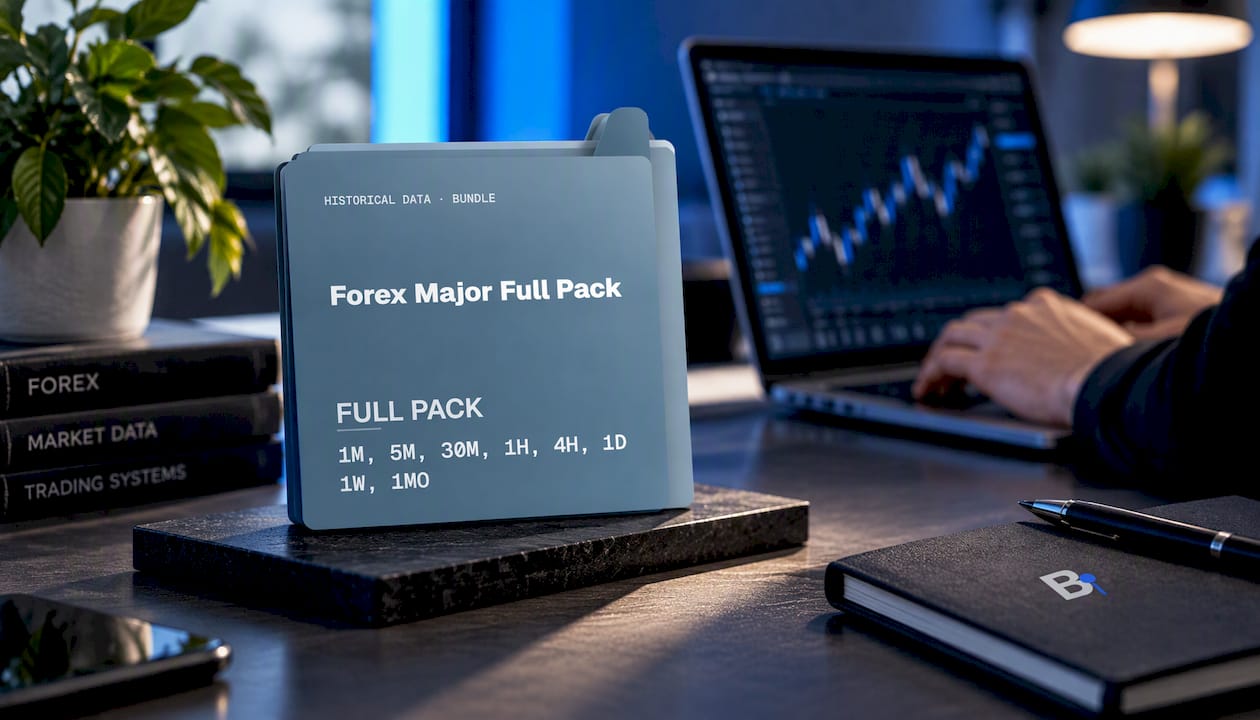
If you would rather not build and audit HST files yourself, our historical data sets are clean minute-bar histories since 2014, prepared for import into MT4 and MT5. Start with the Forex Major Full Pack if you test the major pairs, or look at the Annual Plan, priced at €119 per year.
Building a portfolio of strategies? Our article on MT4 portfolio backtesting shows how to find real drawdowns across systems.
FAQ
What does HST stand for in MetaTrader?
It is the extension for history files. MT4 stores historical quotes for each symbol and timeframe in these files so it can draw charts and run tests. It is unrelated to the Canadian harmonized sales tax.
Can I open an HST file in Excel?
Not directly, because it is binary rather than text. Export the data to CSV from the History Center, or read the file with a script that follows the header and record layout described above.
Do MT5 and MT4 use the same HST format?
MT5 keeps its own internal storage, but a custom symbol can import MetaTrader history files. Use the one-minute bars as the base, because other timeframes are generated from them.
Why is my imported history full of gaps?
Usual causes are missing minute bars in the source, a wrong time shift, duplicate timestamps or terminal bar limits. Run the audit checklist above, and see our guide on fixing missing data in MT4.
Sources
- History Center, MetaTrader 4 Help
- Custom Financial Instruments, MetaTrader 5 Help
- Custom Financial Instruments, MetaTrader 5 Help (Japanese)
- Offline Charts in the New MQL4, MQL4 Articles
- .hst file format, Old and New, MQL4 forum
- CustomRatesReplace, MQL5 Reference
- HSTViewer on GitHub
- MT4 historical data in Python, Strategy of C
- Time and sales data: fields and limitations, PennyStockScout
Recommended
- MT4 History Center: 5 Safe Fixes Before File Repair
- BTM Data Converter
- How to Import CSV Data Into MT4 for Backtesting
- Market Data Formats for Developers & Quants: SBE, Parquet, Dollar Bars
Related resources
Explore BacktestMarket's Expert Advisor robots to put the ideas in this article into practice.