

If MT4 is showing missing historical bars, gaps in your chart, or an "unmatched data" error, three things fix most cases in under five minutes: restart the terminal, rename your local "history" folder to force a clean re-download, and pull M1 data through the History Center (F2). Adjust your "Max bars in history" and "Max bars in chart" settings while you're at it, since a low cap silently truncates what you can see or test.
That covers the common case: a broker feed hiccup or a corrupted local file. It does not cover everything.
- Restart MT4 and check your connection status first
- Rename the "history" folder, then relaunch to trigger a fresh download
- Open History Center (F2), download M1, then let MT4 recalculate other timeframes
- Raise "Max bars in history" and "Max bars in chart" under Tools → Options → Charts
If you're testing at scale, running high-frequency EAs, or the corruption keeps coming back after every fix, stop patching and import a validated dataset instead. BacktestMarket sells ready-to-import minute-bar files built for exactly this problem.
Key Takeaways
Most MT4 missing-data problems trace back to a corrupted local file, a symbol-name mismatch, or a broker-imposed history limit, and each requires a different fix.
| Point | Details |
|---|---|
| Start with the folder rename | Renaming the local "history" folder forces a clean re-download and fixes most corruption cases. |
| Download M1 first | Pulling M1 through History Center before other timeframes lets MT4 recalculate the rest correctly. |
| Diagnose before you repair | Distinguish corrupted files, symbol mismatches, and broker-limited history before choosing a fix. |
| Not every warning is fatal | Interpolation-based "unmatched data" messages can be harmless if tick modeling is enabled. |
| Validate before you trust it | Check modeling quality and run a gap-detection script before relying on any recovered dataset. |
| Import clean data for production work | BacktestMarket's back-adjusted minute-bar datasets remove the recurring gaps that manual fixes only patch temporarily. |
Table of Contents
- How Do You Fix MT4 Missing Data Step by Step?
- Why Is Your MT4 Data Missing or Mismatched?
- How Do You Import Clean Historical Data Into MT4?
- How Do You Prevent MT4 Data Gaps From Coming Back?
- How Do You Confirm Your Restored Data Is Reliable?
- The Checklist I Actually Run When MT4 Data Goes Missing
- BacktestMarket: Ready-to-Import Datasets for MT4 Backtests
- Sources
How Do You Fix MT4 Missing Data Step by Step?
Work through these in order. Most traders solve the problem by step 3 or 4 and never need the rest.
-
Restart MT4 and confirm connectivity. MT4 spools recent bars from the server the moment a chart opens, so a dropped connection is often the entire problem. Check the bottom right corner for the connection icon before you touch anything else.
-
Rename the local "history" folder. Go to File → Open Data Folder, close MT4, and rename the "history" directory (add "_old" to the name). Relaunching forces MT4 to rebuild it from scratch. This single move resolves a large share of unmatched-data errors tied to a corrupted local file, and it's the same fix documented across community troubleshooting guides for terminals that crashed mid-session.
-
Download M1 through History Center first. Press F2, pick your symbol, select M1, and hit Download. Do M1 before any other timeframe. Experienced traders and forum contributors consistently point to this sequence as the most reliable in-platform recovery path, since MT4 recalculates every higher timeframe from that base data automatically.
-
Try the fake-bar trick for a bulk spool. Advanced users open the M1 chart, manually edit a bar's date back to 1970, then refresh. That tricks the terminal into requesting a much larger data range from the broker server in one shot. Once the download finishes, delete the fake bar. This trick is ad hoc and unofficial, so treat it as a last resort before contacting support, not a first move.
-
Raise your bar limits. Tools → Options → Charts has two fields, "Max bars in history" and "Max bars in chart." Both default low on fresh installs, which caps how much data can even load regardless of what the broker has available.
-
Call your broker if nothing works. Persistent gaps that survive a folder rename and a fresh History Center download usually mean the broker's own server has a hole in its feed, not your terminal.
Pro Tip: Do the folder rename before you touch chart settings. Traders often adjust "Max bars" first, get frustrated when nothing changes, and never realize the corrupted local file was blocking the download the entire time.
Why Is Your MT4 Data Missing or Mismatched?
Not every "missing data" symptom has the same cause, and treating them all the same way wastes time. MT4 stores each timeframe in a separate HST file on your machine. When you open a chart, the terminal downloads only the most recent missing bars from the server. Older history has to be requested explicitly through History Center or imported from an outside source.
Three distinct problems produce three different symptoms:
- Corrupted local files. A crash mid-download leaves an HST file in a broken state. Symptom: charts that were fine yesterday suddenly show gaps or refuse to load.
- Symbol-name mismatches. Your broker labels a pair "EURUSD.a" or "EURUSDpro" while your script or imported file expects plain "EURUSD." MT4 treats these as different symbols entirely, so it can't find matching history no matter how much data exists.
- Broker-limited history. Some brokers simply don't retain more than a year or two of minute data on their servers. No amount of re-downloading fixes a gap that never existed on their side.
To tell them apart, zoom out on the chart and look at where the gap starts. A clean cutoff at a round date often signals a broker limit. Random holes scattered through the middle usually mean corruption or a symbol mismatch. Check Strategy Tester's modeling quality percentage after a test run, too. A low percentage confirms a real data problem rather than a cosmetic warning.
Here's the part most traders miss: some "unmatched data" messages are interpolation artifacts, not actual corruption. When MT4 mixes tick data with HST bar data near the current date, it can log a mismatch warning even when the simulated result is still usable, provided tick modeling is enabled. Genuine integrity failures show up as gaps that persist across multiple restarts and downloads. Interpolation noise tends to clear itself once you have full M1 coverage.
How Do You Import Clean Historical Data Into MT4?
Once you've ruled out a quick fix, or once your gap is a broker limitation rather than a bug, importing outside data is the next move. MT4's History Center supports CSV, PRN, HTM, and HST formats, with import settings for separator character, columns to skip, time shift, and whether volume is included.
Run the import in this order:
- Prepare your source file with correct date, time, OHLC, and volume columns
- Set the time offset to match your broker's server time, not your local time zone
- Import M1 first through History Center, then let MT4 recalculate M5, M15, H1, and above
- Refresh every open chart and re-run a short Strategy Tester pass to confirm bars appear correctly
The reason to skip straight to imported data for production work isn't convenience. It's accuracy. A dataset assembled from mixed broker feeds or partial exports tends to introduce the same interpolation artifacts described above, just baked in permanently instead of flagged as a warning. Back-adjusted, validated minute-bar files avoid that because every bar comes from one consistent source with no seams to paper over.
Pro Tip: Always import M1 and let MT4 build the higher timeframes itself. Importing H1 or H4 directly skips the recalculation step and is a common source of the exact mismatched-chart errors you're trying to fix.
BacktestMarket's import walkthrough covers the CSV formatting and time-shift settings step by step if you want the full checklist in one place, and its engineers answer setup questions directly rather than routing you through a ticket queue.
How Do You Prevent MT4 Data Gaps From Coming Back?
Fixing a gap once and never thinking about it again is how the same problem shows up three months later. A few habits keep it from recurring:
- Back up your /HISTORY folder and export a CSV snapshot monthly, not just when something breaks
- Spot-check M1 coverage and modeling quality the week after any market holiday, since thin holiday liquidity is a common source of new gaps
- Pick one symbol-naming convention (with or without broker suffixes) and apply it across every EA, script, and imported file
- Keep a single canonical data folder you import from, rather than pulling files from wherever you last downloaded them
If you're running continuous backtests or live optimization cycles, manual spot checks eventually become the bottleneck. A maintained minute-bar dataset removes that maintenance cycle entirely, since the update and validation work happens before the file ever reaches you.
How Do You Confirm Your Restored Data Is Reliable?
Getting the bars to load isn't the same as knowing they're trustworthy. Run these checks before you trust a backtest built on recovered or imported data.
- Open Strategy Tester and check the modeling quality percentage after a run. Anything well below 90% signals gaps the simulation is filling in with guesswork.
- Run the same date range twice with slightly overlapping intervals and compare results. Identical trades in the overlap confirm the data is stable, not shifting between runs.
- Pick five trades from the backtest report and match their timestamps against the actual chart. If the price at that timestamp doesn't match the reported entry, something in the import is misaligned.
- Write a short script using
iBars()andiTime()to loop through a date range and flag any timestamp gap larger than expected for that timeframe. - For strategies sensitive to fill price and slippage, switch Strategy Tester to "Every tick" mode or use an external tick converter, since bar-based modeling alone can hide execution-level errors that bar data smooths over.
A backtest is only as good as its worst hour of data. One missing session in the middle of your test window can flip a strategy's win rate without ever showing up as an obvious chart gap.
Platforms outside MT4 face the same ceiling. TradingView's Strategy Tester runs into comparable modeling-quality issues when bar or tick history is incomplete, which tells you this isn't an MT4 quirk. It's a structural limit of bar-based backtesting anywhere.
The Checklist I Actually Run When MT4 Data Goes Missing
I don't troubleshoot MT4 data problems randomly, and neither should you. The order matters: verify the connection and check for an obvious cause first, run the quick fixes (folder rename, M1 download, bar limits), then decide whether a manual patch is good enough or whether the situation calls for a clean external dataset.
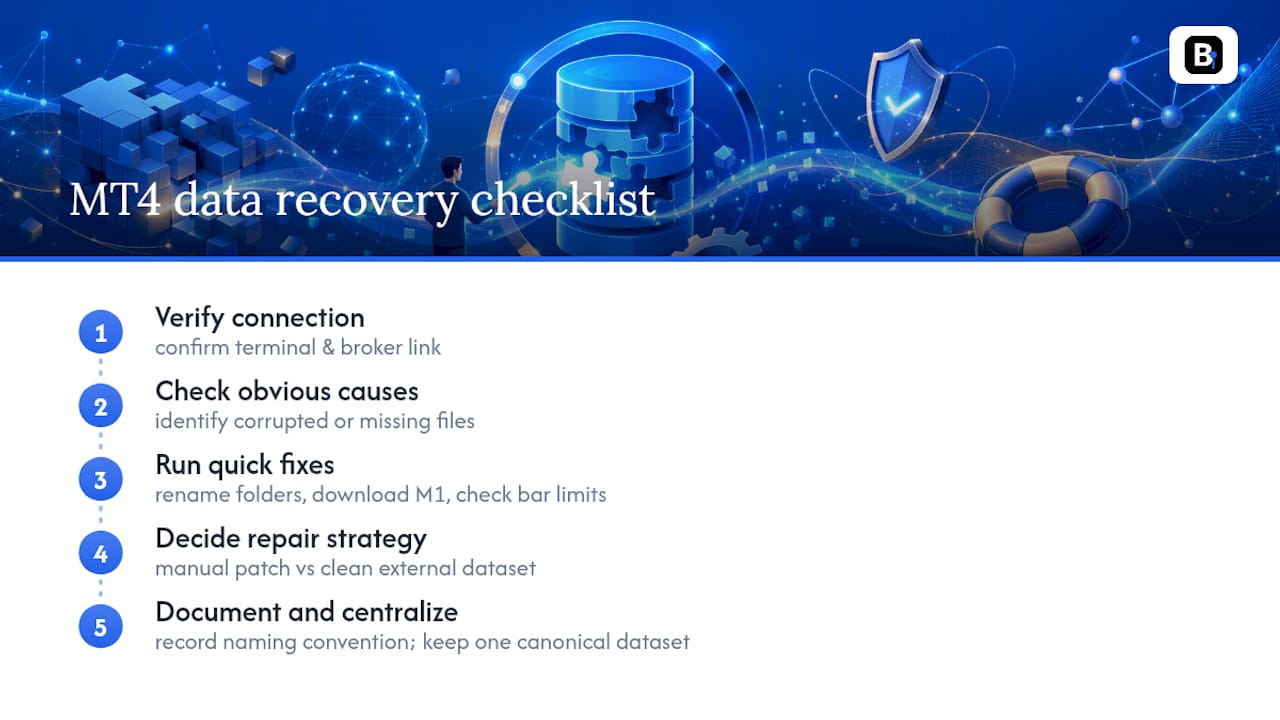
Document your symbol-naming convention the first time you fix a mismatch, not the third time. And keep one canonical, validated dataset you import from instead of a folder of one-off downloads collected over months. That habit alone prevents most repeat gaps.
BacktestMarket: Ready-to-Import Datasets for MT4 Backtests
Manual fixes get you back to a working chart. They don't guarantee the data behind that chart is clean enough to trust with real capital or a production EA. That's the gap BacktestMarket exists to close.
BacktestMarket has sold clean minute-bar historical data since 2014, covering forex, metals, stock indices, bonds, and commodities, with files built for direct import into MT4 and MT5, no reformatting required. Every dataset arrives back-adjusted where relevant and structured to import cleanly the first time, which means no symbol-mismatch surprises and no interpolation artifacts baked into your test results. If you're running high-frequency EAs, testing at production scale, or you've hit the same broker gap for the third time this quarter, that's the point where importing beats patching.
Support comes directly from the engineers who build the datasets, not a generic help desk, so a formatting question gets answered by someone who actually understands MT4's import behavior. Browse the full product catalog to find the instrument and timeframe you need, or start with the MetaTrader import guide if you're ready to load a dataset today.
Sources
- Unmatched data error in MT4 Strategy Tester — EarnForex
- Mismatched charts Errors in Strategy tester - MQL5 blog
- Charts open — MetaTrader 4 Help
- TestGenerator: unmatched data error — EAreview support
- How to fix corrupted history data in MT4 — Abundance Trading Group
Recommended
- Blog | BacktestMarket | BacktestMarket
- How to Import Data in NinjaTrader | BacktestMarket | BacktestMarket
- Holiday Gaps in Market Data: A Quant's Handling Guide | BacktestMarket Blog
Related resources
Explore BacktestMarket's Expert Advisor robots to put the ideas in this article into practice.