

The fastest fixes depend on your goal. For a cleaner-looking chart, use your platform's exclude weekend or session filter setting. For backtesting, import pre-cleaned source data instead of filtering the display. For programmatic charts, reindex the plotting axis to a category or ordinal type so gaps disappear without touching your raw timestamps.
TL;DR:
- Filtering options like exclude weekend or session filters are quick visual fixes but do not address underlying data errors affecting backtesting accuracy.
- Source-level cleaning, such as removing duplicate or misdated bars before backtesting, ensures consistency in indicators and prevents drift caused by data anomalies.
- Reindexing plotting axes to categories or numerals in programming libraries effectively eliminates weekend gaps without altering raw timestamps, suitable for custom chart construction.
- Each platform requires specific data cleaning or configuration steps, with direct data import and timezone adjustments being critical for accurate, reliable backtest results.
- Regularly verify that cleaning processes do not remove legitimate weekday data by comparing indicator outputs on raw and cleaned datasets, preventing strategy misinterpretation.
Table of Contents
- Quick checklist: three routes to remove weekend bars
- Why cleaning the data source beats display-only fixes for backtesting
- Plotting-library solutions to close weekend gaps
- Platform-specific recipes for common charting tools
- Prepare clean data for backtesting: a practical workflow
- Troubleshooting timezone and session pitfalls behind weekend bars
- What traders who backtest seriously should do
- How BacktestMarket helps with clean, import-ready data
- Sources
- FAQ
Quick checklist: three routes to remove weekend bars
Before picking a method, decide whether you need a chart that looks right or a dataset that behaves right in a backtest. Those are different problems with different fixes.
- Platform toggle or session filter: the fastest option, good for visual inspection, does nothing to fix underlying data errors.
- Source-level cleaning: remove weekend rows, normalize timestamps, and deduplicate before backtesting: the right choice when strategy results depend on data accuracy.
- Plot-level reindex: set your plotting library's x-axis to a category or sequential index so weekend candles never render, useful when you control the charting code and want adjacent candles with no gaps.
Start with the platform toggle if you only need to eyeball price action. Move to source-level cleaning the moment you plan to run an automated backtest or feed the data into an indicator library, since a display filter will not catch duplicated or misdated bars sitting underneath the chart.
Pro Tip: Keep a raw, untouched copy of your original data before applying any cleaning step, so you can always trace a strategy anomaly back to a specific row.
Why cleaning the data source beats display-only fixes for backtesting
A display filter hides weekend candles from view but leaves the underlying file untouched. If that file has duplicated bars, misdated ticks, or timestamps recorded in the wrong timezone, your chart will look clean while your backtest engine still reads the corrupted rows.
Pre-cleaned datasets solve this at the source: weekend rows are removed, timestamps are normalized, and the compression from minute bars to hourly or daily bars stays consistent. That consistency matters because indicators built on moving averages or volatility bands drift when the underlying bar count or spacing changes unexpectedly.
A few signs your feed needs source-level attention rather than a display fix:
- Duplicate timestamps appearing on the same trading day.
- Bars dated on a Saturday or Sunday despite a supposedly forex-only feed.
- Daily bars that do not match the sum of their underlying minute bars after compression.
Spotting these before you trust a chart saves hours of debugging a strategy that was never broken, just fed bad data.
Plotting-library solutions to close weekend gaps
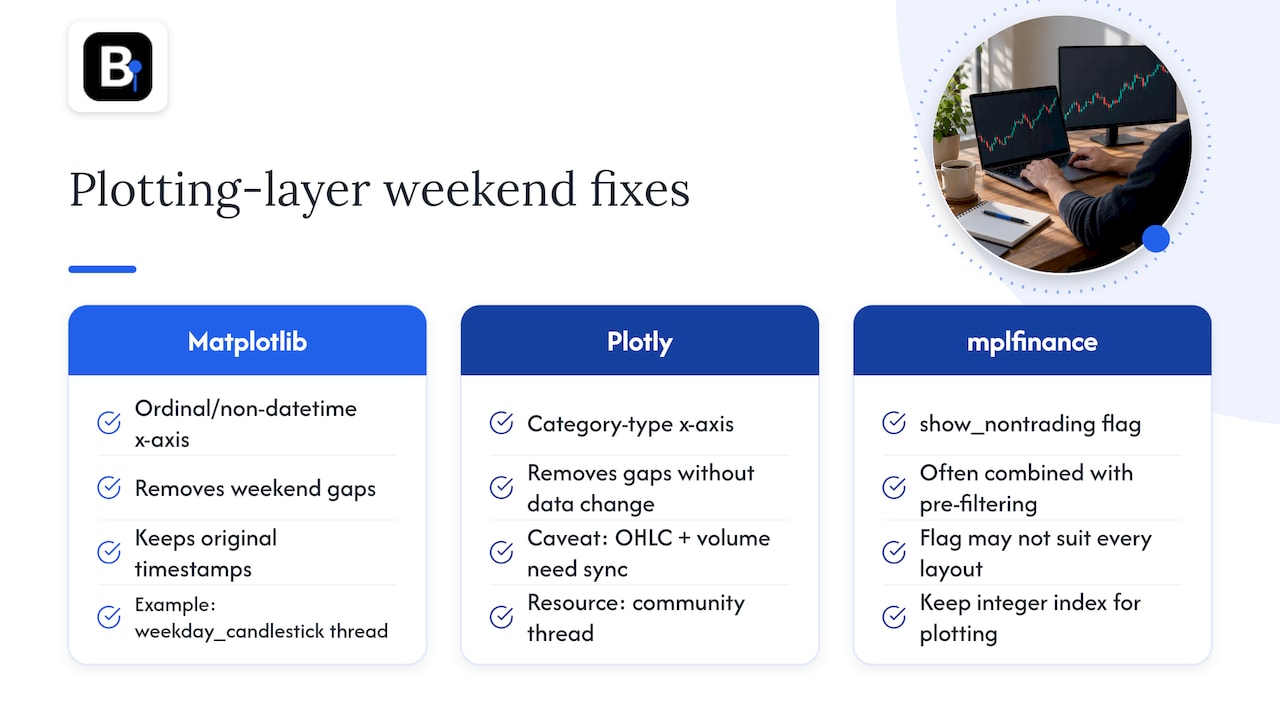
If you build charts programmatically, the fix happens in the plotting layer, not the data file. Reindex your dataframe to a sequential integer index, then map the original date strings to your x-axis tick labels. This makes each candle adjacent to the next regardless of the calendar gap between them.
In Matplotlib, setting the x-axis to a non-datetime, ordinal-style index removes weekend gaps without altering the underlying timestamps, and a Matplotlib candlestick thread walks through a working weekday_candlestick example. Plotly handles this with a category-type x-axis, though a Plotly community thread on volume subplots notes that OHLC traces and volume subplots often need separate axis handling to stay in sync.
For candlestick-specific libraries, mplfinance offers a show_nontrading flag, and filtering the dataframe before plotting is a common workaround when that flag alone does not fit your layout.
Pro Tip: When you need to preserve exact timestamps for auditing, keep a separate integer index column for plotting while leaving your original date column untouched for logging.
Platform-specific recipes for common charting tools
Each platform handles weekend bars differently, and the "fix" that works in one often breaks compression in another.
- MT4/MT5: import cleaned minute data directly rather than relying on the built-in feed, confirm the GMT offset matches your broker's server time, and recompress daily bars only after cleaning is complete.
- AmiBroker: define trading sessions explicitly instead of using a generic filter weekends option, since timezone overlaps can leave partial weekend bars in feeds that span multiple sessions.
- Sierra Chart: the Do not load weekend data option works for most feeds, but verify that calendar-day compression still matches trading-day compression afterward.
- ProRealTime: apply day-range filters or a small ProBuilder snippet that excludes bars falling outside your defined trading days.
- Forum-sourced EA or script fixes: these can patch a specific feed quickly, but many assume a fixed timezone offset and will silently break compression if your broker changes server time or daylight saving rules.
When a forum script works for one dataset and fails on another, the usual cause is a hardcoded assumption about timezone or session hours that does not hold across brokers.
Prepare clean data for backtesting: a practical workflow
Turning a raw feed into something a backtest engine can trust follows a fairly fixed sequence.
- Keep a raw, unedited copy of the original feed.
- Normalize all timestamps to a single chosen GMT offset or session standard.
- Drop weekend rows and any zero-volume ticks that slipped through.
- Deduplicate rows sharing identical timestamps.
- Recompress bars to your target timeframe and reindex.
- Run a known indicator, like a simple moving average, and confirm it produces the expected values against a trusted reference.
For MT4 and MT5, CSV files need consistent column order and date formatting before import: see the step-by-step MetaTrader import guide for the exact format each platform expects.
Pro Tip: Run the same indicator test on both your raw and cleaned datasets: if the values diverge significantly, the cleaning step introduced an error rather than fixing one.
Buying a provider-cleaned dataset skips steps one through five entirely, which matters most when you are validating several strategies at once and cannot afford to debug your data pipeline every time a result looks off.
Troubleshooting timezone and session pitfalls behind weekend bars
Most weekend or duplicate bars trace back to a handful of root causes: a timezone conversion applied inconsistently, ticks arriving late after the official market close, daylight saving transitions shifting server time without a matching data adjustment, or a session window configured with the wrong start or end hour.
Community reports across charting platforms consistently point to feed timezone mismatches, UTC versus local conversion, as a leading cause of weekend or duplicate bars, according to developer discussion on AmiBroker's timezone handling, which recommends resolving it through explicit session redefinition rather than a blanket weekend filter.
To verify a fix actually worked:
- Compare raw timestamps against the cleaned file to confirm no legitimate weekday bars were dropped.
- Check for any remaining duplicate dates after compression.
- Rerun a compressed indicator test and confirm the values match your pre-cleaning baseline for weekday data.
If daily compression looks wrong after a fix, check whether the session window you defined actually covers the full trading day. A related issue worth checking separately is daylight saving time errors in minute data, which produce a similar symptom but a different root cause.
What traders who backtest seriously should do
Cleaning your own feed is a reasonable weekend project the first time. Doing it every time you switch brokers or add an instrument is where most traders lose more time than the backtest itself ever saves them. Provider-cleaned, minute-bar data removes that recurring cost and gives you a reproducible starting point every time you test a new idea. DIY cleaning still has a place for small, one-off checks, but for anything you plan to run repeatedly, source-level data quality is worth paying for once instead of rebuilding it each time.
— Start
How BacktestMarket helps with clean, import-ready data
Instead of rebuilding a cleaning pipeline every time you add a new pair or broker feed, you can start from a dataset that has already gone through that process.
A data provider offers clean minute-bar intraday data covering various markets, with datasets ready for direct import into MT4 and MT5.
- Complete datasets download as a single package rather than piecemeal files you have to stitch together.
- Bar-by-bar verification and documented adjustments aim to keep compression and timestamps consistent across the file.
- Support comes from the technical team maintaining the data.
If your priority is getting back to strategy testing rather than data plumbing, browsing the Historical Data catalog or checking the Annual Plan at €119 per year is a faster starting point than cleaning a raw feed from scratch.
Sources
- How to Remove Weekends in Matplotlib Candlestick Chart?
- Remove weekend gaps from volume bar subplot
- Re: amibroker forex daily bar time-compression problem
FAQ
Does removing weekend bars change my strategy's backtest results?
It can, especially if the removal method deduplicates or drops rows that were part of legitimate weekday data. Always compare indicator values before and after cleaning to confirm the fix only removed weekend rows and nothing else.
What is the difference between hiding weekend bars and cleaning the data?
Hiding weekend bars is a display-only setting that leaves the underlying file untouched, while cleaning the data actually removes weekend rows, normalizes timestamps, and deduplicates the source file. Display fixes are fine for visual charts, but backtesting needs the source-level clean because hidden errors still affect strategy logic.
Do 95% of day traders lose money?
Trading performance varies widely by strategy, risk management, and market conditions, and no single figure applies universally across all traders and markets. Poor data quality, including uncleaned weekend bars in backtests, is one factor that can make a strategy appear more profitable in testing than it turns out to be in live trading.
Is it good to hold options over the weekend?
That depends on the specific options strategy, position size, and the trader's risk tolerance, and it falls outside the scope of forex weekend bar data cleaning. Traders considering this should consult resources specific to options markets rather than forex data practices.
How do I verify my weekend bar fix worked correctly?
Check for duplicate timestamps, confirm no weekday bars were accidentally dropped, and rerun a simple indicator like a moving average to compare against your pre-cleaning baseline. If daily compression looks off after the fix, revisit your session window definition and timezone offset first.
Recommended
- Forex Daylight Saving Time: Fixing DST Errors in Minute Data
- Fixing MT4 Missing Data: A Complete Recovery Guide
- Holiday Gaps in Market Data: A Quant's Handling Guide
- Audit First MT5 Backtesting Data: Gap, Timestamp, Ready to Import
Related resources
Explore BacktestMarket's historical data packs to put the ideas in this article into practice.