Important: If you purchased the 5-minute or 1-minute timeframe files, do not open and save them with Microsoft Excel. This will corrupt the dataset. Use Notepad (or any plain-text editor) for large files instead.
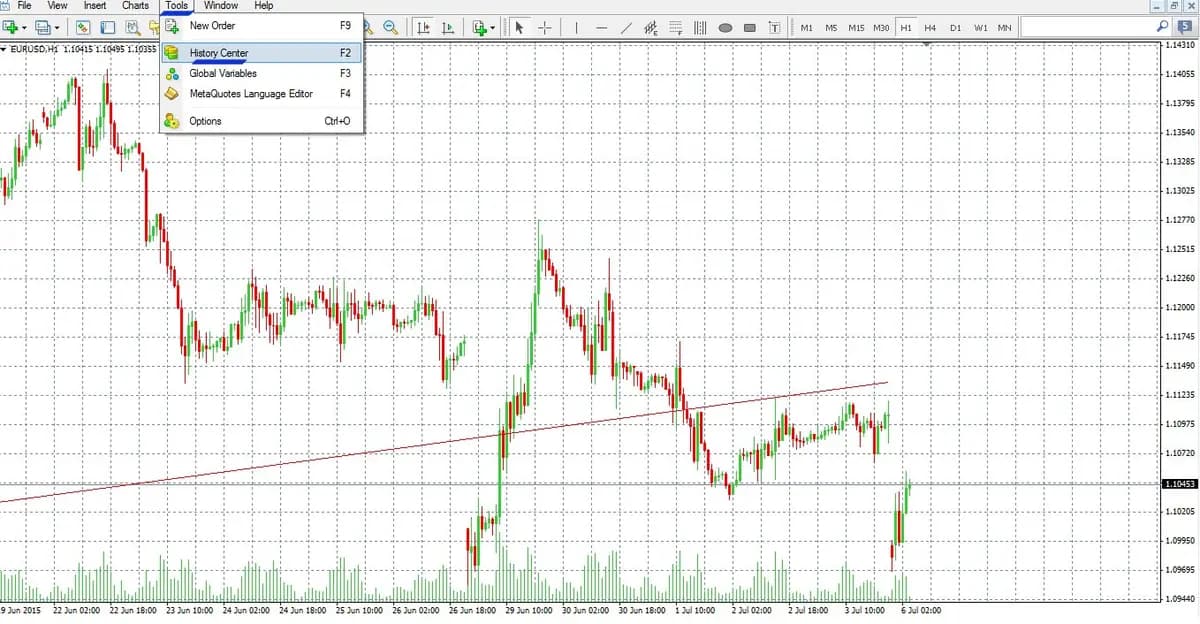
Step 1 — Open the History Center
Inside MetaTrader, press F2 or navigate to Tools → History Center to open the data import panel.
Step 2 — Select the Asset
In the History Center, expand the broker tree and locate the trading instrument you want to import — currency pair, index, metal, commodity, or stock.
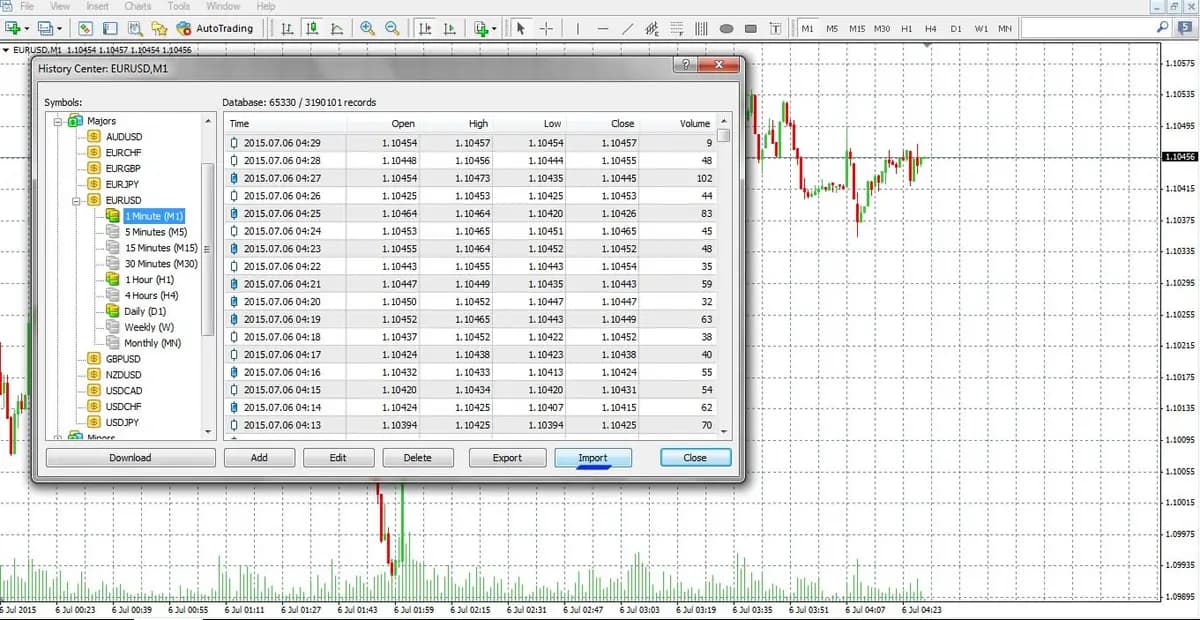
Step 3 — Choose the Timeframe and Import
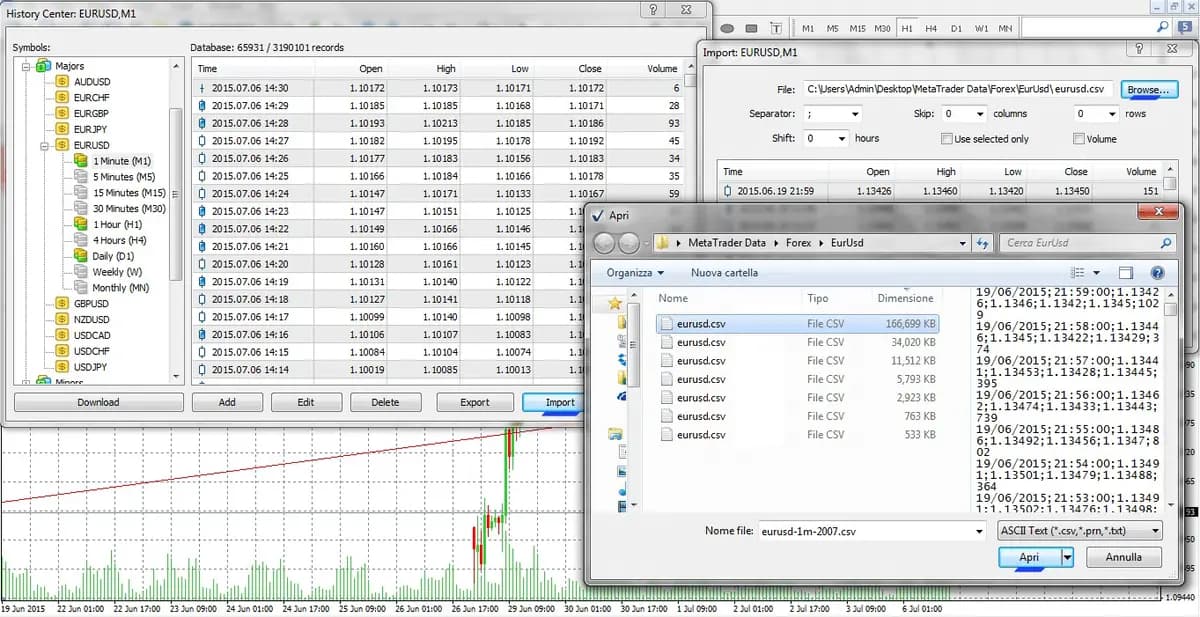
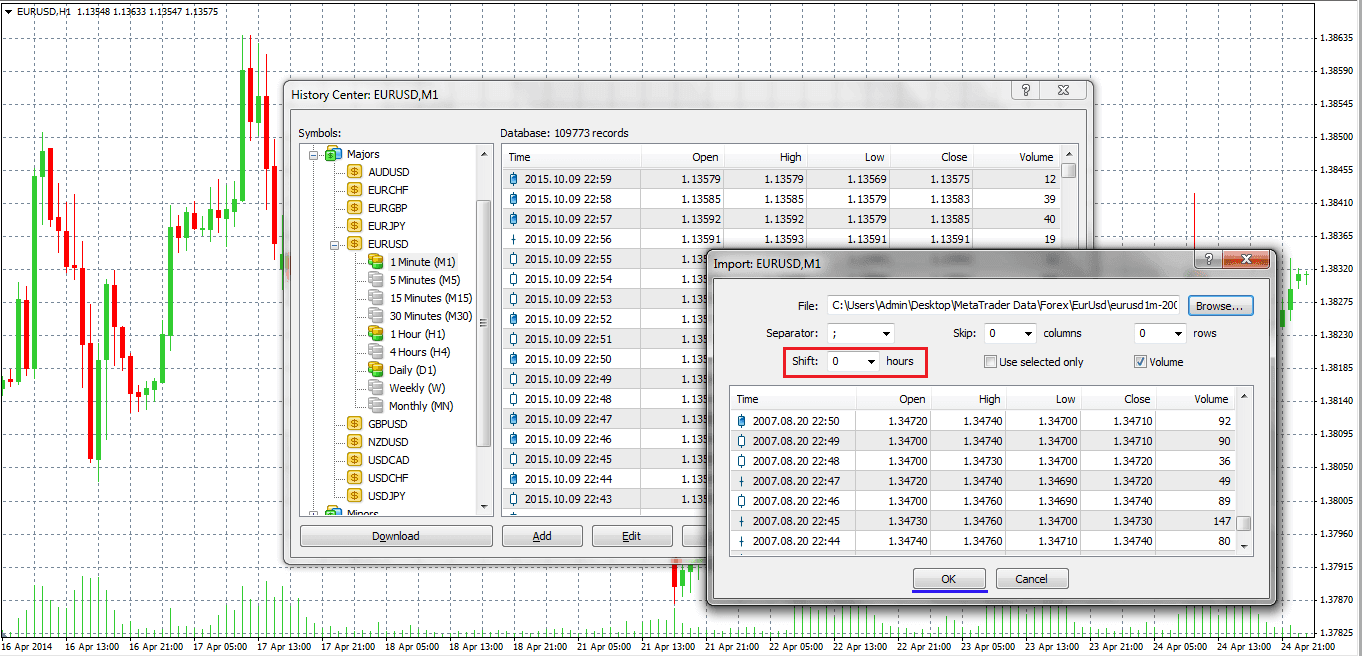
Double-click through the asset hierarchy to reach the desired timeframe, then click Import and browse to the corresponding file on your computer.
For example, to import EUR/USD 1-minute data:
MAJORS → EUR/USD → 1 MINUTE → Import → select file
Step 4 — Verify the Separator
Before confirming the import, check that the separator is set to semicolon (;). This must match the format of the data file.
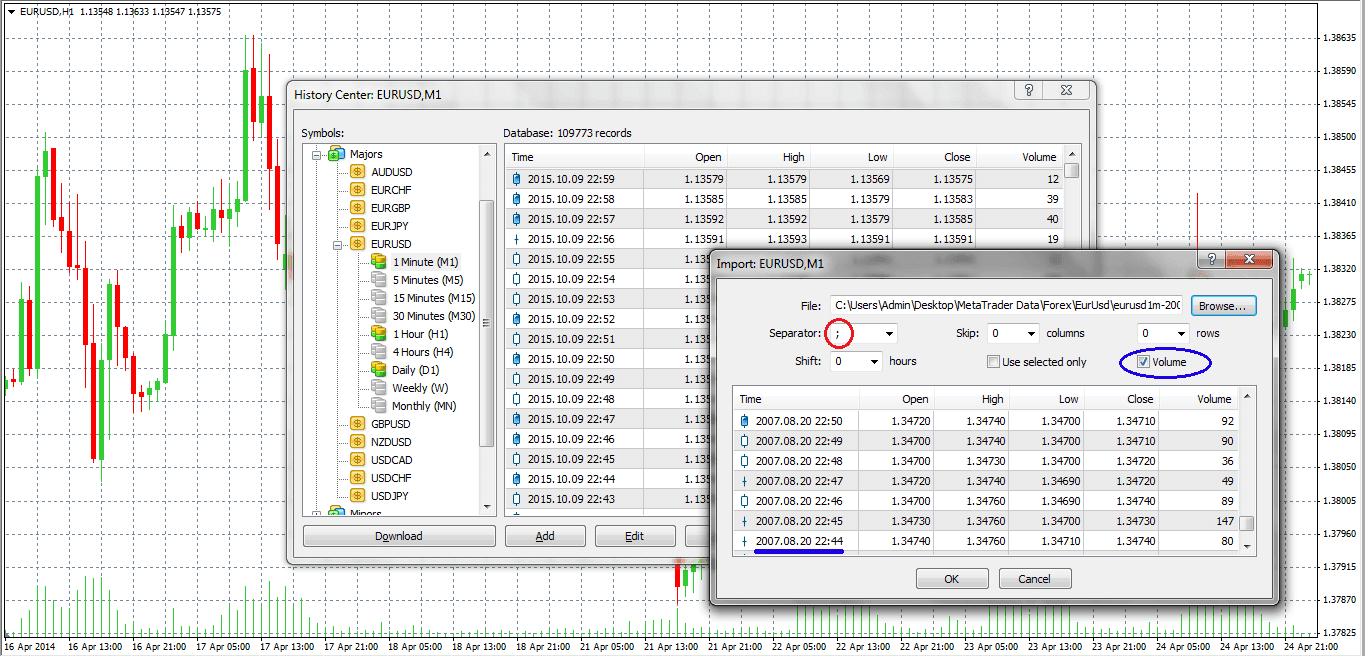
Step 5 — Adjust the Timezone (GMT Shift)
BacktestMarket data is delivered in GMT-6 (Chicago time). You need to shift it to match your MetaTrader broker's timezone using this formula:
Shift = Your MT4/MT5 timezone − Chicago timezone (GMT-6)
| Your timezone | Shift value |
|---|---|
| GMT-5 (New York) | +1 |
| GMT+1 (Rome / Central Europe) | +7 |
| GMT+8 (Singapore) | +13 |
Step 6 — Repeat for Other Timeframes and Instruments
Repeat Steps 2–5 for every additional timeframe or instrument you purchased. Each timeframe requires a separate import.
Disclaimer
BacktestMarket is an independent data provider and has no affiliation with MetaTrader or MetaQuotes Software Corp. The data and guides provided are for educational and research purposes only and do not constitute investment advice or trading recommendations.