

An MT4 History Center error almost always means the terminal has insufficient, corrupt, or unreachable historical data for the symbol and timeframe you're testing. Press F2, double-click the timeframe to refresh or download it, and run Charts → Refresh before anything else. If that doesn't clear it, back up your terminal's history folder before touching any files, then work through the repair steps below.
TL;DR:
- MT4 Journal messages identify whether the problem is a server outage, limited broker history, a corrupt file, a timezone mismatch, or an insufficient test range.
- Download the affected timeframe with F2, refresh the chart, and raise both chart history limits if needed; back up the terminal folder before editing files.
- External imports require the correct column order, exact broker symbol, and matching GMT offset; spot check timestamps and run a short test before trusting results.
- A high Strategy Tester modeling score cannot rule out missing bars; scalping, Renko, and intrabar stop strategies need tick replay to reduce interpolation errors.
Table of Contents
- Common History Center messages and quick diagnosis
- Fast, safe steps that resolve most History Center problems
- How to find and repair corrupt .hst files and restore history safely
- Importing external minute and tick datasets for serious backtesting
- Checks to verify data integrity and Strategy Tester modeling quality
- What to collect and who to contact when fixes fail
- How MT4 history data quality shapes backtesting accuracy
- Tick data versus minute bars: what changes in your backtest
- Why third-party data imports sometimes trigger History Center errors
- Keeping your historical data clean over time
- How clean, ready-to-import data avoids History Center errors entirely
- A reproducible approach to MT4 historical data
- BacktestMarket: clean, ready-to-import history for MT4
- FAQ
- Sources
Common History Center messages and quick diagnosis
The exact wording in your Journal tab tells you which fix to try first. MT4's History Center window manages historical quotes by pulling data from the server and storing it as timeframe-specific .hst files, so most errors trace back to a missing or stale file in that process.
- "Cannot connect to history.metaquotes.net" or similar server messages usually point to a broker server outage or a temporary MetaQuotes connectivity issue rather than a problem on your machine.
- "No new data for symbol" typically means your broker's history server has limited depth for that instrument, not that your terminal is broken.
- HistoryBase errors or charts showing zero bars generally indicate a corrupt .hst file or a timezone mismatch between the broker server and your terminal.
- The message that at least 100 history candles are required to run a test means your tester start date falls before the available bars, not that data is missing entirely.
Check the Journal tab (not the Experts tab) for the line matching your error, since it usually names the specific symbol and timeframe involved, which tells you exactly which .hst file to investigate.
Fast, safe steps that resolve most History Center problems
Most History Center errors clear up with a handful of low-risk actions, in this order:
- Open History Center with F2, select the symbol, double-click the affected timeframe, and click Download to request fresh data from your broker.
- Close the chart and reopen it, then use Charts → Refresh to force MT4 to reload the local file.
- If the download stalls, try the forked-bar trick documented in trading forums: edit one historical bar's date to an old value like 1970, refresh the chart to force a broader M1 download, then delete that edited bar.
- Go to Tools → Options → Charts and raise "Max bars in history" and "Max bars in chart" to larger values, then restart the terminal so the new limits take effect.
- Watch the Journal tab while each step runs and save the log lines if the problem persists, since you'll need them for the repair or escalation steps that follow.
Pro Tip: Copy your terminal's entire history folder to a separate drive before deleting or editing anything, since a bad file is easy to fix but a deleted good one is not.
How to find and repair corrupt .hst files and restore history safely
Your historical quotes live in the /HISTORY folder inside the terminal directory, with filenames following the SSSSSSPP.hst convention: symbol code followed by a two-digit period code. A file named EURUSD60.hst, for instance, holds 1-hour bars for EURUSD.
Corruption shows up as large unexplained gaps in timestamps, bars with zero open, high, low, or close values, chart gaps that survive a refresh, or repeated HistoryBase errors in the Journal even after a download attempt.
The repair workflow:
- Back up the entire terminal folder first, not just the suspect file.
- Export the current (even partial) history for that symbol and timeframe to CSV, in case you need a partial record later.
- Delete the damaged timeframe entry from History Center, or remove the specific .hst file directly from the /HISTORY folder.
- Replace it with a backup .hst file if you have one, or import a clean CSV through History Center's import function.
- Restart MT4 and refresh the chart to confirm the new data loads without errors.
If no backup exists, force an M1 download first and let MT4 rebuild the higher timeframes from that base data, or import an external dataset to fill the gap.
Importing external minute and tick datasets for serious backtesting
Native broker downloads through History Center are often shallow, especially on lower timeframes going back years, which is a real limitation when you need years of clean minute bars for a strategy test. Community threads on MQL4's forum confirm that MetaQuotes and broker history servers commonly cap how far back they'll serve data, pushing traders toward forced downloads or external sources.
To import outside data:
- Convert your dataset to a CSV, PRN, or HTM format that matches MT4's expected column order (date, time, open, high, low, close, volume).
- Set the correct GMT offset for your broker and confirm the symbol name matches exactly, since a mismatch silently produces wrong timestamps.
- Open History Center, select the symbol and timeframe, and use the Import button to load the file.
- Confirm the bar count and spot-check a handful of timestamps against a known reference before trusting the result.
Pro Tip: Run a short, two-week backtest right after import and compare a few trade entry times against what you'd expect manually, since misaligned timestamps usually surface in the first few trades.
A 7-step data audit before backtesting catches most alignment problems before they cost you a weekend of debugging, and our CSV import guide walks through the formatting details that trip up most imports.
Checks to verify data integrity and Strategy Tester modeling quality
Before you trust a backtest, check what the Strategy Tester's modeling quality percentage is actually telling you. A high percentage with missing bars or heavy interpolation can still produce misleading results, particularly for Renko or tick-based expert advisors where bar-level approximation changes trade triggers.
- Compare expected bar counts for your test period against what actually loaded, since a shortfall usually means a gap you haven't found yet.
- Spot-check timestamps at the start, middle, and end of the dataset rather than assuming the whole range is clean.
- Run tick-replay testing where available for strategies sensitive to intrabar price movement.
Check modeling quality and bar counts before you trust a full backtest run. The percentage shown in Strategy Tester reflects how closely minute data approximates real tick movement, and a low score on a tick-sensitive strategy is a signal to source better data rather than ignore the warning, as outlined in MetaTrader's own History Center documentation.
What to collect and who to contact when fixes fail
When none of the above resolves the error, gather evidence before reaching out for help:
- The exact Journal log lines showing the error, with timestamps.
- The precise error text, copied rather than paraphrased.
- The affected .hst filenames and the terminal build number, found under Help → About.
- Screenshots of the chart gap or the History Center window showing the problem.
Testing on a clean terminal install on a different machine helps isolate whether the issue is broker-side or local to your installation. Checking the MetaTrader 4 release notes for your build is worth doing too, since certain builds have had documented connectivity or synchronization issues.
When you contact your broker's support team, include the logs and a clear step-by-step reproduction path. If the issue involves imported third-party data, attach your import logs when reaching out to that provider's support team as well.
How MT4 history data quality shapes backtesting accuracy
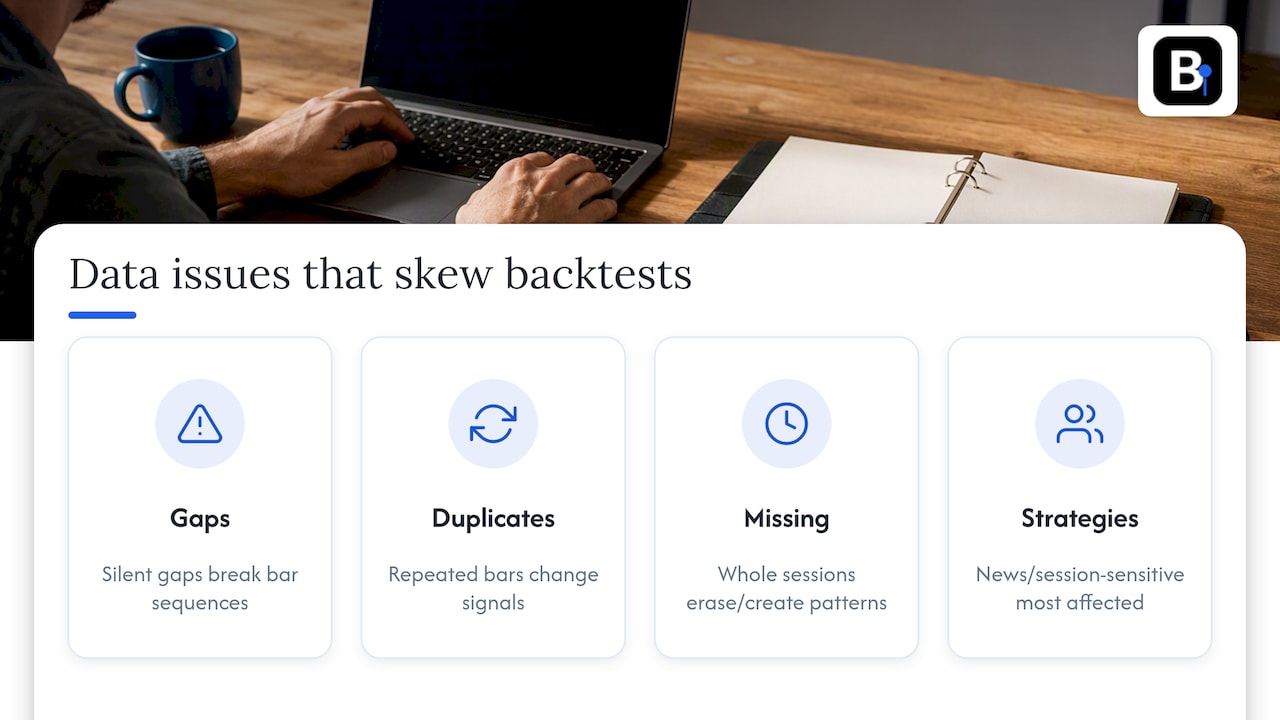
The historical data sitting in your /HISTORY folder isn't just a display convenience. It's the entire input to Strategy Tester, so every gap, duplicate, or misaligned timestamp becomes a distortion in your results. A strategy that looks profitable on data with silent gaps can behave completely differently once those gaps are filled, because entry and exit signals that depended on specific bar sequences simply didn't fire the same way.
This matters most for strategies sensitive to volatility clusters or specific time-of-day behavior, since a missing session's worth of bars can erase or invent patterns that don't exist in the live market. Developers building expert advisors around news events or session opens are especially exposed, because a handful of missing bars around those windows changes the backtest's read on drawdown and win rate.
The practical takeaway is that data quality checks aren't a one-time setup step. They're part of validating any strategy before you risk capital on it, and a broker's native download, while convenient, wasn't built with backtesting rigor as the primary design goal. Treating history data as a variable to verify, not a given, is what separates a believable backtest from a misleading one.
Tick data versus minute bars: what changes in your backtest
MT4's Strategy Tester historically works from minute bars, then interpolates price movement within each bar to simulate tick-level behavior. That interpolation is where approximation creeps in: a minute bar tells you the open, high, low, and close, but not the order in which the high and low occurred, so the tester has to guess.
For strategies that don't care about intrabar sequencing, like a daily breakout system checked once per bar close, this approximation barely matters. For scalping systems, Renko-based logic, or anything triggered by a stop or limit order mid-bar, the guess can flip a winning trade into a losing one in the simulation without that happening in live trading.
Real tick data removes the guesswork by replaying actual price changes in sequence, which is why serious backtesting of short-term strategies benefits from tick-equivalent or genuinely granular minute data rather than relying on the tester's internal interpolation. The modeling quality percentage in Strategy Tester is effectively a proxy for how much interpolation is happening, so a strategy showing a low score is one where the gap between simulated and real behavior is likely widest.
Why third-party data imports sometimes trigger History Center errors
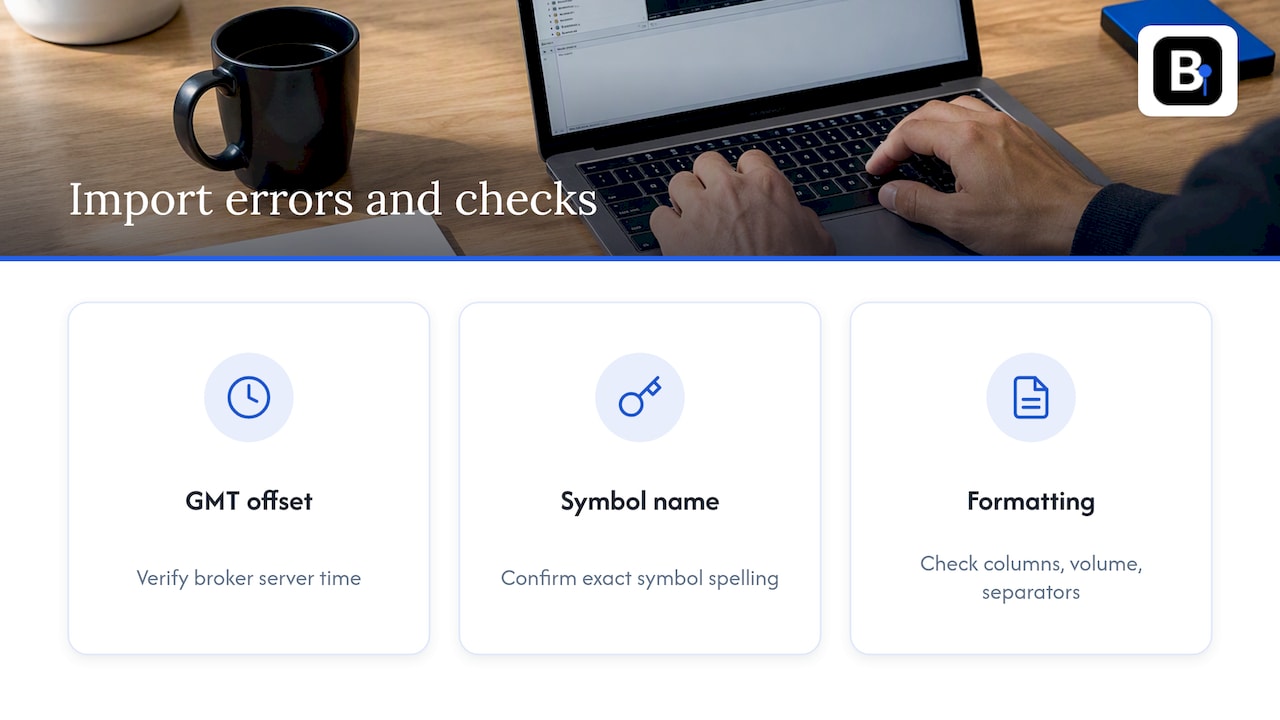
Importing data from outside your broker introduces a different set of failure points than a native download. The most common cause is a GMT offset mismatch: if the external dataset's timestamps don't align with your broker's server time, MT4 can read bars as out of order or overlapping, which shows up as HistoryBase errors or charts that look visually broken even though the file imported without an error message.
Symbol naming mismatches cause a similar problem. A dataset labeled "EURUSD" won't import cleanly against a broker symbol listed as "EURUSD.a" or "EURUSDpro" without a manual rename, and MT4 won't warn you clearly when this happens.
Formatting issues round out the usual suspects: wrong column order, missing volume data, or a decimal separator that doesn't match your regional settings can all cause a silent partial import. The fix in every case is the same: verify the GMT offset against your broker's documented server time, confirm exact symbol spelling, and check a sample of imported bars against the source file before running any backtest on it.
Keeping your historical data clean over time
A one-time fix doesn't keep History Center errors from coming back. Treat your terminal's history folder the way you'd treat any dataset you depend on for decisions: back it up on a schedule, not just when something breaks.
A few habits prevent most repeat issues. Keep dated copies of your /HISTORY folder before any terminal update, since updates occasionally alter how existing .hst files are read. Document which timeframes you've imported manually versus which came from your broker, so a future error is easier to trace to its source. Avoid mixing partial manual edits with broker-downloaded data on the same timeframe, since that's a common source of the timestamp gaps that trigger HistoryBase errors months later.
For anyone running multiple strategies across several symbols, standardizing on a single, verified data source for all your backtesting removes a whole category of inconsistency, since every instrument then shares the same GMT handling, the same bar construction method, and the same gap-filling approach.
How clean, ready-to-import data avoids History Center errors entirely
Most of the errors covered above trace back to one root problem: broker-supplied history is often shallow, inconsistently timestamped, or simply unavailable far enough back for proper strategy validation. We built our datasets to remove that variable from the equation. Our minute-bar historical data, maintained since 2014 across forex, metals, stock indices, bonds, and commodities, comes pre-formatted for direct import into MT4's History Center, so there's no GMT guesswork or column-order troubleshooting on your end.
Because the files are verified bar by bar before release, you skip the zero-value bars and timestamp gaps that typically trigger HistoryBase errors after a manual import. Our MT4 and MT5 import guide walks through the exact steps for loading a dataset once you've downloaded it, and our data source overview explains how to avoid the conversion mistakes that cause most third-party import failures in the first place.
A reproducible approach to MT4 historical data
Treat every dataset like a research input worth documenting: back up before you touch it, log what you changed, and record where each file came from. A backtest you can't reproduce six months later isn't telling you much, no matter how clean it looked on the day you ran it. Favor vetted, verified sources for anything you'll use to validate a live strategy.
— Start
BacktestMarket: clean, ready-to-import history for MT4
When History Center keeps failing or your broker simply doesn't go back far enough, switching to a verified dataset solves the problem at the source rather than patching it repeatedly. We offer clean, minute-bar historical intraday data, covering forex, metals, stock indices, bonds, and commodities, formatted for immediate import into MT4 and MT5 without the alignment guesswork that trips up manual CSV conversions.
Every dataset is checked bar by bar before release, and our documentation walks through the import steps symbol by symbol so your History Center stays error-free going forward. If you want ongoing access to updated datasets, our Annual Plan runs €119 per year and covers continued updates and support. Browse our historical data catalog to find your instrument, or check the full product lineup including expert advisors and indicators built around the same verified data standard. If you're validating results after import, comparing backtest performance against live trading data is a useful sanity check once your new dataset is loaded.
FAQ
Is MT4 being phased out?
MetaQuotes continues to support MT4 alongside MT5, and brokers still widely offer it, so there's no official end date announced. Many traders keep using MT4 specifically for its established expert advisor ecosystem and simpler Strategy Tester workflow.
Is MetaTrader 4 a real platform or a fake?
MetaTrader 4 is a legitimate, widely used trading platform developed by MetaQuotes and offered through regulated and unregulated brokers worldwide. Reports of "fake" MT4 typically refer to fraudulent brokers running look-alike interfaces, not the genuine MetaQuotes software itself.
Why is my MT4 not connecting?
A failed connection usually means the broker's server is temporarily down, your internet connection is interrupted, or your firewall is blocking the terminal. Checking the Journal tab for the specific connection error, and confirming your server name matches what your broker provided, narrows down the cause quickly.
How do I download trading history on MT4?
Press F2 to open History Center, select your symbol and timeframe, and click Download to request data from your broker's server. If the download is limited, forcing an M1 download first and letting MT4 populate other timeframes, or importing external CSV data, fills in the gaps your broker won't provide.
Sources
- History Center - Tools - MetaTrader 4 Help
- MT4 history problem - not updated as usual | Forex Factory
Recommended
- Reproducible MT4 Backtesting Data Sources That Skip Conversion
- How to Import CSV Data Into MT4 for Backtesting
- How to Fix the MT4 GMT Offset for Accurate EA Timing
Related resources
Explore BacktestMarket's historical data packs to put the ideas in this article into practice.