

Two settings control how many bars MT4 shows and stores: Max bars in chart and Max bars in history, both found under Tools → Options → Charts. Changing either requires a terminal restart to take effect, and neither setting forces the terminal to pull more data from your broker's server. If you need guaranteed full history for backtesting, check History Center (F2) first, then consider importing external data.
TL;DR:
- Increasing Max bars in chart improves live-view capabilities but does not guarantee access to older data stored on your broker’s server.
- Raising Max bars in history affects how many bars are saved for backtesting and can be limited by your broker’s data retention policies.
- Importing external .hst files or verified datasets often provides a more reliable full history than relying solely on broker servers or increased settings.
- Restarting MT4 after adjusting settings is essential, as changes do not apply until a full terminal restart.
- Custom range and real-range bar indicators rely on underlying data limits and cannot bypass maximum history constraints without proper data importation.
Table of Contents
- What 'Max bars in chart' vs 'Max bars in history' do and why they differ
- How to change MT4 bar settings, use History Center, and import external .hst files
- Why MT4 may still show fewer or more bars than you set
- How custom range and real-range bars behave with MT4 bar limits
- Practical troubleshooting checklist to get the bars you need
- Why clean, ready-to-import datasets solve most "not enough bars" problems
- When to prioritize full datasets over terminal performance
- Where to get ready-to-import historical data for MT4
- FAQ
- Sources
What 'Max bars in chart' vs 'Max bars in history' do and why they differ
These two parameters sound similar but control different things entirely. Max bars in chart limits how many bars are available to charts, indicators, and MQL4 programs at any given moment, and exists mainly to save computer resources during live use, according to MQL4's documentation on timeseries access. Max bars in history governs something else: how many bars get saved to disk for each timeframe, the pool used when you run a strategy tester, as explained in MetaTrader 4's own help documentation.
Think of it as memory versus storage. Chart bars live in RAM while you're actively viewing a symbol. History bars sit in .hst files on your hard drive, available whenever you reopen the terminal or run a backtest.
When you first open a chart, MT4 typically spools a default batch of recent bars (often around 512) rather than your full history setting. Scrolling left triggers a request for earlier data, but only if that data exists on the server or in your local files. A chart can temporarily hold more bars than your setting if you've been scrolling and the terminal hasn't trimmed the buffer yet, though this isn't guaranteed behavior you should rely on.
This distinction matters for indicators and expert advisors too:
- Indicators with large lookback periods need enough chart bars loaded to calculate correctly, or they'll show gaps or errors on the left edge.
- Expert advisors using
prev_calculatedto avoid recalculating old bars still depend on having enough history loaded initially. - A strategy tester run is bound by Max bars in history, not by whatever you've set for live charts, so a tight history setting can quietly shrink your backtest window.
Raising both settings costs you RAM and disk space, so balance generosity against your machine's resources.
How to change MT4 bar settings, use History Center, and import external .hst files
Getting more bars onto your charts or into your backtests takes a few concrete steps, plus some patience with how MT4 actually fetches data.
- Open Tools → Options → Charts, raise Max bars in chart and Max bars in history to the values you need, then click OK.
- Close and restart the terminal completely. Settings changes don't apply live, a restart is required before the new limits take effect, per MetaTrader 4's charts documentation.
- Open History Center with F2, select your symbol and timeframe, and check the date range already stored locally.
- If the range is thin, scroll the chart itself far to the left. This is often what actually triggers a server request, since MQL4's documentation notes that additional data is requested only when the chart scrolls into an area with no data or when an MQL4 program explicitly asks for it.
- For gaps the server can't fill, use History Center's import function to load a properly formatted .hst file or CSV covering the missing range.
Before importing anything, run through a short checklist: back up your existing history files, confirm the symbol name in your import file matches exactly what your broker uses (including suffixes), check that time offsets align with your terminal's timezone setting, and spot-check a handful of imported bars against a known source before trusting the full set.
Pro Tip: Don't assume a bigger Max bars number alone will refill your chart. Community troubleshooting on the MQL5 forum consistently shows that if your broker's server has no older history to offer, raising the setting changes nothing: you'll need to import external data or switch brokers.
If you're preparing for a serious backtest rather than just browsing charts, it's worth reading through our guide on how to backtest an expert advisor in MetaTrader 4 before you start importing data, since the sequence of steps affects how clean your results come out.
Why MT4 may still show fewer or more bars than you set
Plenty of traders raise both settings, restart, and still don't get the history they expected. A few causes show up again and again.
- Broker-provided limits: your broker's server simply may not retain data going back as far as you want, and no local setting can conjure history the server never stored, a point repeatedly confirmed in MQL5 forum discussions.
- Rogue or corrupted candles: bad entries in a .hst file can persist even after you delete and re-download, according to one forum thread documenting the issue, which sometimes requires manually deleting the corrupted history file and re-importing from a clean source.
- Multiple terminal installs or profiles: running several MT4 instances, or switching between live and demo profiles, can create confusing inconsistencies where one install shows different history than another for the same symbol.
- Stale cached data: a chart that's been open a long time may be holding onto bars in memory that no longer match what's actually in the current .hst file.
To diagnose which of these you're dealing with, compare the same symbol and timeframe across two separate installs, or spin up a fresh portable copy of MT4 with no custom settings. If the fresh install shows the same limited history, your broker's server is the bottleneck. If it shows something different, the problem lives in your existing installation's files, and a clean re-import is the fix.
How custom range and real-range bars behave with MT4 bar limits
Custom range bar and real-range bar indicators or expert advisors build their own charts from underlying tick or time-based data, which means they inherit whatever limits apply to that source timeseries. A range bar generator can only construct as many bars as the raw data and terminal resources allow, so it isn't exempt from the same Max bars in chart ceiling.
- Range and real-range bar creators depend entirely on the quality and length of the standard timeseries feeding them, they don't magically access more history than your terminal already has.
- Heavy use of custom chart generators alongside large Max bars settings can strain terminal memory faster than ordinary time-based charts, since each custom chart effectively duplicates processing overhead.
- A safer workflow is to test range bar logic on a copy of your terminal first, keep Max bars in chart at a conservative level for day-to-day use, and reserve full-history imports for dedicated backtesting sessions rather than live charting.
If your strategy depends on long, reliable range bar history for research rather than live trading, importing a complete external dataset tends to be more reliable than asking a custom EA to rebuild years of range bars from scratch inside MT4.
Practical troubleshooting checklist to get the bars you need
When bars still don't match expectations, work through these checks roughly in order of how often they solve the problem.
- Confirm you actually restarted the terminal after changing Max bars in chart and Max bars in history, this single step resolves a surprising share of reported issues.
- Open History Center (F2) for the specific symbol and timeframe in question, and look for obvious gaps or a shorter range than expected.
- Import a clean .hst file for any missing range rather than hoping a server request will backfill it automatically.
- Temporarily disable resource-heavy indicators or expert advisors to see whether memory pressure, not the bar settings, is the real limit.
- Test the same symbol on a different broker's demo account or a fresh portable MT4 install to isolate whether your current broker's server is simply withholding older history.
- For backtests specifically, double-check Max bars in history rather than Max bars in chart, since the strategy tester reads from the stored history files.
Pro Tip: If you're building indicators that need to run efficiently even with a large Max bars setting, use prev_calculated to process only new bars rather than recalculating the entire buffer every tick, a technique detailed in a StackOverflow discussion on MQL4 resource management.
When reproducibility matters more than convenience, relying on your broker's variable history isn't a strong foundation, so many traders use normalized market data with API access for reliable backtests. External, documented datasets remove that variable entirely.
Why clean, ready-to-import datasets solve most "not enough bars" problems
Broker-supplied history varies by server, by account type, and sometimes even by the day you happen to check it. That inconsistency is exactly what trips up traders who assume Max bars in history alone guarantees a full, reliable backtest window.
- A ready-to-import dataset sidesteps the question of what your particular broker happens to retain, since the bars are already complete and verified before they reach your terminal.
- We have offered clean minute-bar historical intraday data since 2014, built for direct import into MT4 and MT5 rather than requiring you to piece together partial broker history.
- Importing one of our datasets follows the same safe sequence as any .hst import: back up your existing files, match the symbol name and time offset to your broker's conventions, and verify a sample period before running a full backtest.
If a dataset question comes up during import, our support team is made up of the engineers who actually collect and clean the data, not a layer removed from it.
When to prioritize full datasets over terminal performance
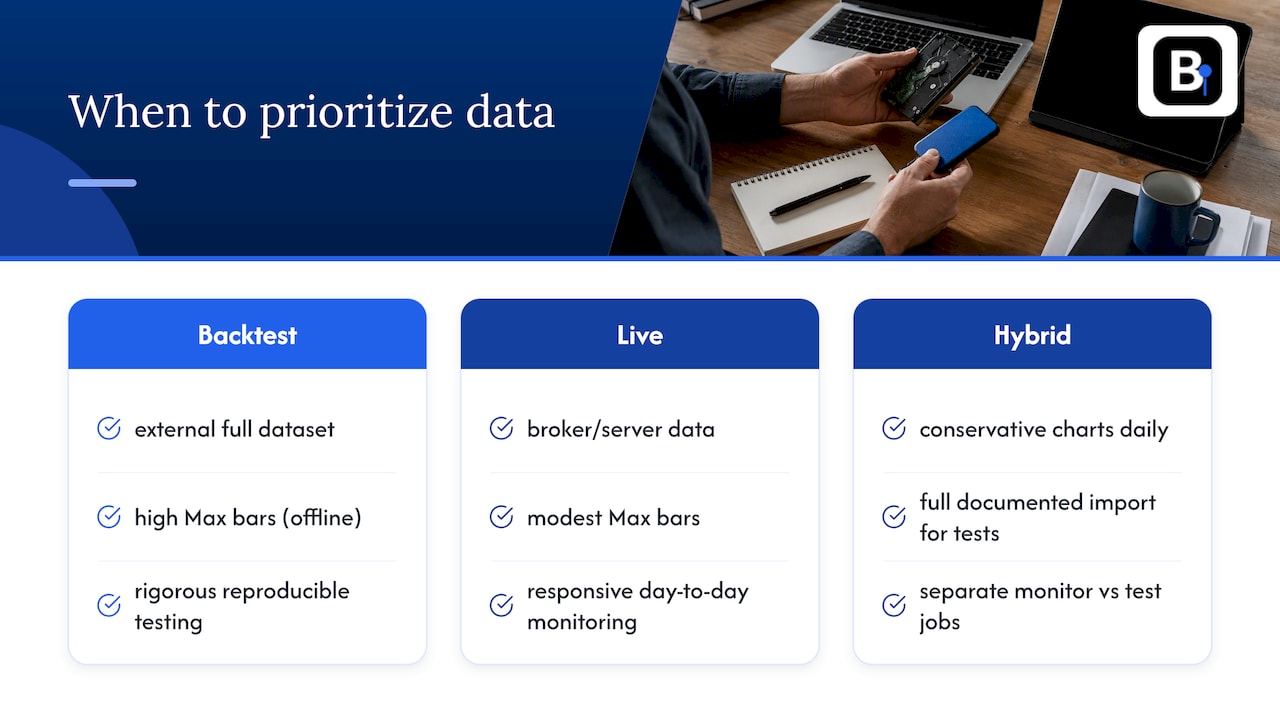
The right answer depends on what you're actually doing. If you're running a controlled, reproducible backtest, a complete external dataset beats relying on whatever your broker's server happens to retain that week. If you're just watching live price action, a lean terminal with modest Max bars in chart settings keeps things responsive and avoids unnecessary memory strain.
Most serious quants end up running a hybrid setup: conservative chart settings for day-to-day monitoring, paired with a full, documented dataset imported separately whenever a strategy needs rigorous testing. Treating these as two different jobs, rather than one setting that has to serve both, tends to save a lot of frustration.
— Start
Where to get ready-to-import historical data for MT4
If broker-limited history keeps interrupting your backtests, a complete dataset solves that at the source rather than fighting terminal settings indefinitely. We offer minute-bar intraday data across forex, metals, stock indices, bonds, and commodities, built specifically for traders running quantitative strategies who need consistent, verified inputs rather than whatever a server happens to retain.
- Our Historical Data page covers the full range of instruments available as ready-to-import files.
- Our Annual Plan gives ongoing access for traders who need continuously updated datasets rather than a one-time download.
Browse the datasets, check which instruments match your strategy, and import a sample period before committing to a full backtest run.
FAQ
What is the Buy Limit order on MetaTrader 4?
A Buy Limit is a pending order that executes a purchase only when the market price falls to a level you specify, below the current price. Traders use it to enter a long position at a more favorable price than the market currently offers, rather than buying immediately at the current rate.
What is the difference between range bars and Renko bars?
Range bars form a new bar once price moves a set number of points, regardless of time, and each bar reflects the actual high and low reached during that move. Renko bars also ignore time but use fixed-size bricks that only print in the direction of movement, discarding wicks entirely, which makes them visually simpler but less precise about intra-bar price action.
What is the best indicator for MT4?
There's no single best indicator since the right choice depends on your strategy, timeframe, and whether you're trading trend, range, or breakout conditions. What matters more than the indicator itself is making sure your terminal has enough history loaded, controlled by Max bars in chart, so the indicator calculates correctly from the first bar onward.
Do traders still use MT4?
Yes, MT4 remains widely used, particularly among forex traders who value its established expert advisor ecosystem and broker support, even as MT5 has expanded in adoption. Many brokers continue offering MT4 alongside newer platforms, and its history and charting settings work the same way described throughout this guide.
How do I get more historical bars if my broker's server doesn't have them?
If scrolling the chart and adjusting Max bars in history doesn't pull in older data, your broker's server likely never stored it. Importing a verified external dataset through History Center is the reliable path, and our Historical Data product is built for exactly that use case.
Sources
- Organizing Data Access — MQL4 documentation
- Charts - Client Terminal Settings - MetaTrader 4 Help
- Increase Number of Bars in Chart — MQL5 forum
Recommended
Related resources
Explore BacktestMarket's historical data packs to put the ideas in this article into practice.