

A custom symbol in MetaTrader 5 is an instrument you build yourself: you create it in the terminal, set its specification, import your own price history, and then chart it or run the Strategy Tester on it. To make one, open the symbol management window from the Market Watch context menu, click Create Custom Symbol, configure every parameter, and only then import your bars or ticks. The order matters more than most guides admit, because some settings wipe the history you just loaded.
This guide walks through that order, explains the time shift and time zone settings that cause most bad backtests, and shows how to check the result before you trust it.
TL;DR
- Create the symbol from Market Watch, ideally by copying the parameters of a similar instrument, then set every specification field before importing data.
- Changing tick size or value, charting mode, point value, accuracy or (for synthetics) the formula deletes the minute and tick history. Configure first, import second.
- Import from a text file or HST file on the Bars or Ticks tab. Use the Shift field only when the file was saved in a different time zone than the one you want on the chart.
- Duplicate timestamps and out-of-order ticks are errors. Audit the file before import, not after a strange backtest.
- Custom symbols can be selected in the Strategy Tester, and the tester's history requirements still apply to them.
Table of Contents
- Why traders create custom symbols
- How to create a custom symbol in MT5
- Settings to lock down before you import
- Importing price history into the symbol
- Time shift and chart time zone, explained
- Check and clean the data before you test
- Chart it and backtest it
- Our perspective: clean minute bars first, clever setup second
- Ready-to-import data for your custom symbols
- Common mistakes and quick fixes
- FAQ
- Sources
Why traders create custom symbols
The terminal's help describes the feature as a way to build symbols for technical analysis and strategy testing when your broker does not provide the instrument, or when the depth or quality of its history is not enough (MetaTrader 5 help). In practice, the reasons come down to a few cases:
- Missing history. Your broker's feed starts in 2019 and you want a decade of data.
- Poor quality. The broker's history has gaps, spikes or inconsistent spreads that distort results.
- Instruments the broker does not list. An index, a metal or a bond you want to study.
- Synthetic instruments. A spread, ratio or basket calculated from other symbols.
- Controlled experiments. Running the same strategy on several data sources to see whether the edge survives.
An overview of why investors reach for this kind of tooling when standard feeds fall short is in this guide to technical analysis tools. The rest of this article is the hands-on part.
One storage detail is worth knowing: custom-symbol price data is saved in a separate Custom directory, not in the directories where trade-server data lives (MetaTrader 5 help). Your imported history never mixes with the broker's, and it never overwrites it.
How to create a custom symbol in MT5
The steps below follow the terminal's own workflow.
- Open the symbols window. In Market Watch, right-click and choose Symbols. All custom symbols live in a separate Custom group.
- Click Create Custom Symbol. Give it a name. Keep it short and without spaces, such as
EURUSD_clean, so it is easy to reference in an EA or a tester config. - Copy from a similar instrument. The terminal lets you copy parameters from an existing symbol and modify them (MetaTrader 5 help). For a forex pair, copy a pair with the same quote currency and digits. This saves you from typing contract size, margin and swap fields by hand.
- Edit the specification (covered in the next section).
- Show it in Market Watch and open a chart. It will be empty until you import data.
- Import the history on the Bars or Ticks tab.
If you prefer code, MQL5 has a family of functions for custom symbols. CustomRatesUpdate and CustomTicksAdd add or update historical data programmatically (MQL5 Reference). That route suits developers who generate synthetic series or keep data in a database. For one-off imports of a file, the graphical dialog is faster.
Settings to lock down before you import
This is where most people lose an afternoon. According to the terminal's help, the minute and tick history of a custom symbol is deleted automatically when you change the formula (for synthetic symbols), the tick size and value, the charting mode, the point value or the accuracy. The same happens when those parameters are changed from MQL5 programs (MetaTrader 5 help).
So build a short pre-flight checklist:
| Setting | Why it matters | Check |
|---|---|---|
| Digits / accuracy | A 5-digit file imported into a 3-digit symbol gives wrong prices | Match the digits in your file |
| Point value and tick size | Drives profit calculation in the tester | Copy from a comparable symbol, then verify |
| Tick value | Same, plus lot-size risk math | Confirm for the quote currency |
| Charting mode | Bid or Last price basis for bars | Pick before import |
| Contract size, min/max/step volume | Affects position sizing in tests | Match the real instrument |
| Swap and margin | Shape long-run results | Set realistically or you test an impossible account |
| Trading sessions | Define when the symbol is tradable | Set so the tester does not trade in closed hours |
The habit to build: finish the entire specification, close the dialog, reopen it and confirm the values stuck, and only then import. If you must change one of the destructive fields later, plan to re-import.
Importing price history into the symbol
You can import from any text file, as well as from MetaTrader history files (HST). Choose the symbol, then go to the Bars or Ticks tab (MetaTrader 5 help). In the import dialog you set:
- the path to the file;
- the separator;
- how many columns (left to right) and rows (top to bottom) to skip;
- the Shift value, a time shift in hours.
The terminal calculates tick flags itself during import. And the history is stored as one-minute bars, with every other timeframe built from them, so a clean minute series is the foundation of everything else on the chart.
Matching columns to the file
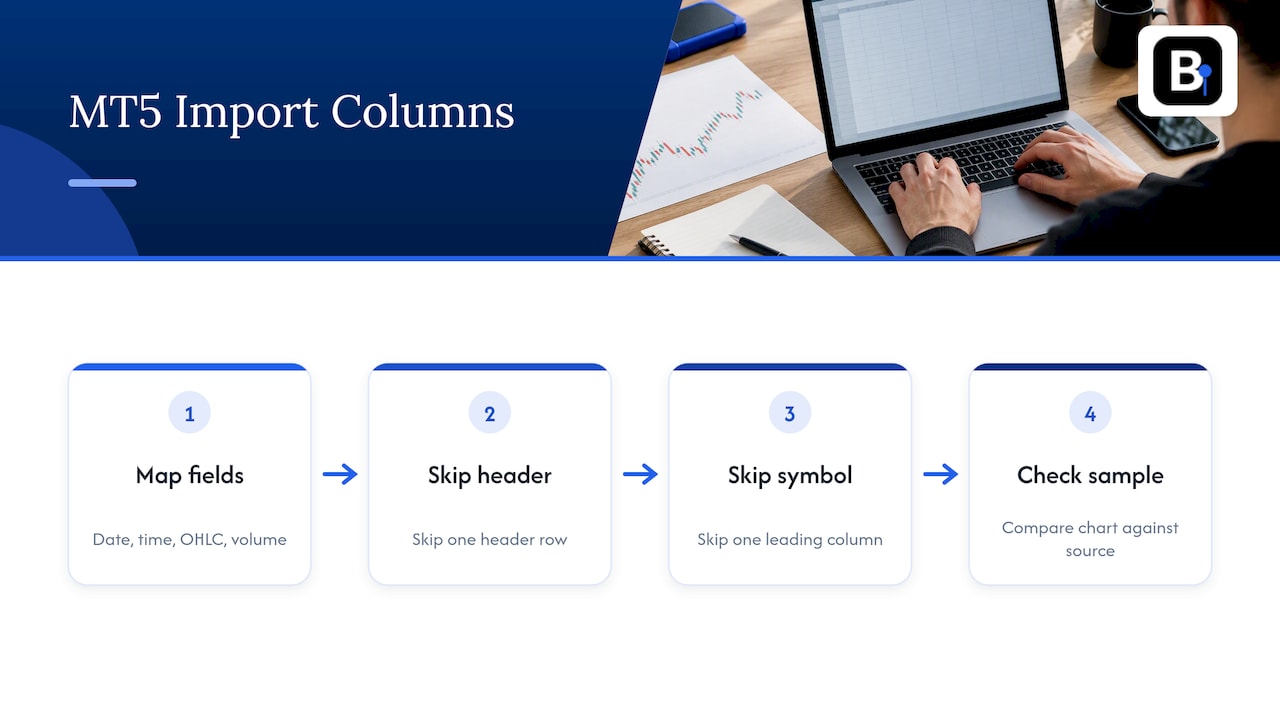
Most import errors are column errors. A typical minute file has date, time, open, high, low, close and volume. If your file has a header row, skip one row. If it has an extra leading column, such as a symbol name, skip one column. Import a short sample first, open a chart, and compare a few bars against the source file by eye.
Our step-by-step walkthroughs cover the mechanics in more depth: how to load data in MT5 and how to stop broken candles when importing CSV into MT5. If you work in both platforms, the import guide for MetaTrader 4 and 5 shows the differences side by side.
Time shift and chart time zone, explained
Time is the most common silent error in custom-symbol work, so it deserves its own section.
What the Shift option does
Shift applies a time offset in hours as the data is imported. Use it when the file was saved in a different time zone than the one you want to see in the terminal (MetaTrader 5 help). A file stamped in UTC that you want on a UTC+2 chart needs a shift of +2. It moves timestamps only. Prices and the shape of the movement stay exactly as they were.
Which time zone does the chart show?
MT5 charts do not use your computer's clock. They display time on the broker's server clock, so a bar labeled 16:00 means 16:00 server time, wherever you sit. Many forex servers follow a fixed-offset convention tied to the New York close, so their offset from UTC changes with daylight saving. That is why a naive fixed shift can be right in January and wrong in July.
That has three practical consequences:
- Decide your target clock first. Either match your broker's server time (so a custom symbol lines up with live charts) or use plain UTC (so data from many sources lines up with each other).
- Check the source file's clock. Ask the data provider, or read the documentation. Never assume.
- Watch the daylight saving switch dates. A single fixed Shift value cannot follow daylight saving. If your file is in UTC and your target clock moves with DST, either import in UTC and accept it, or split the file at the transition dates and import with two different shifts.
A quick sanity test
Pick a moment you know: the first bar after a weekend gap, or a scheduled data release that moved the market. Find it in your imported chart and in a live chart of the same instrument from your broker. If the spike is off by exactly one or two hours, you have a shift problem, not a data problem. If it is off by one hour only in summer or only in winter, you have a daylight saving problem.
This matters beyond looks. Time-of-day filters, session-based logic and news filters in an EA all read bar time. A two-hour error does not make a chart look wrong, but it makes a London-open strategy trade the wrong hour. Our guide to the MT4 GMT offset walks through the same issue for EAs that depend on timing, and the logic carries over to MT5.
Check and clean the data before you test
A backtest is only as good as its bars. The terminal's own rules give you a starting audit:
- No duplicate bars. Only one bar can correspond to a given minute, so duplicate bars with the same time are considered an error.
- Ticks in order. Imported ticks must be ordered from earlier to more recent (MetaTrader 5 help).
Beyond those, build a checklist you run on every file:
- Gaps. Count missing minutes inside trading sessions. Weekends are expected; a missing Tuesday afternoon is not.
- Impossible bars. High below low, open or close outside the high-low range, zero or negative prices.
- Spikes. A one-minute bar that jumps 2% and returns is usually a bad print, not a market move. Test whether your strategy's profits depend on such bars.
- Rollover and contract stitching. For futures-based series, check whether the data is back-adjusted and how the adjustments are documented. A raw stitched series shows fake gaps at every roll.
- Consistent clock. One time zone and one DST rule across the whole file.
We go through a fuller audit procedure in auditing MT5 backtesting data for gaps and timestamps. Do it on the raw file with a script or a spreadsheet. It is far cheaper than debugging a strategy that was in fact fine.
Chart it and backtest it
Once imported, the custom symbol appears in Market Watch, where you can open charts and apply indicators and analytical objects. You can also select it in the Strategy Tester to run trading robots and indicators (MetaTrader 5 help).
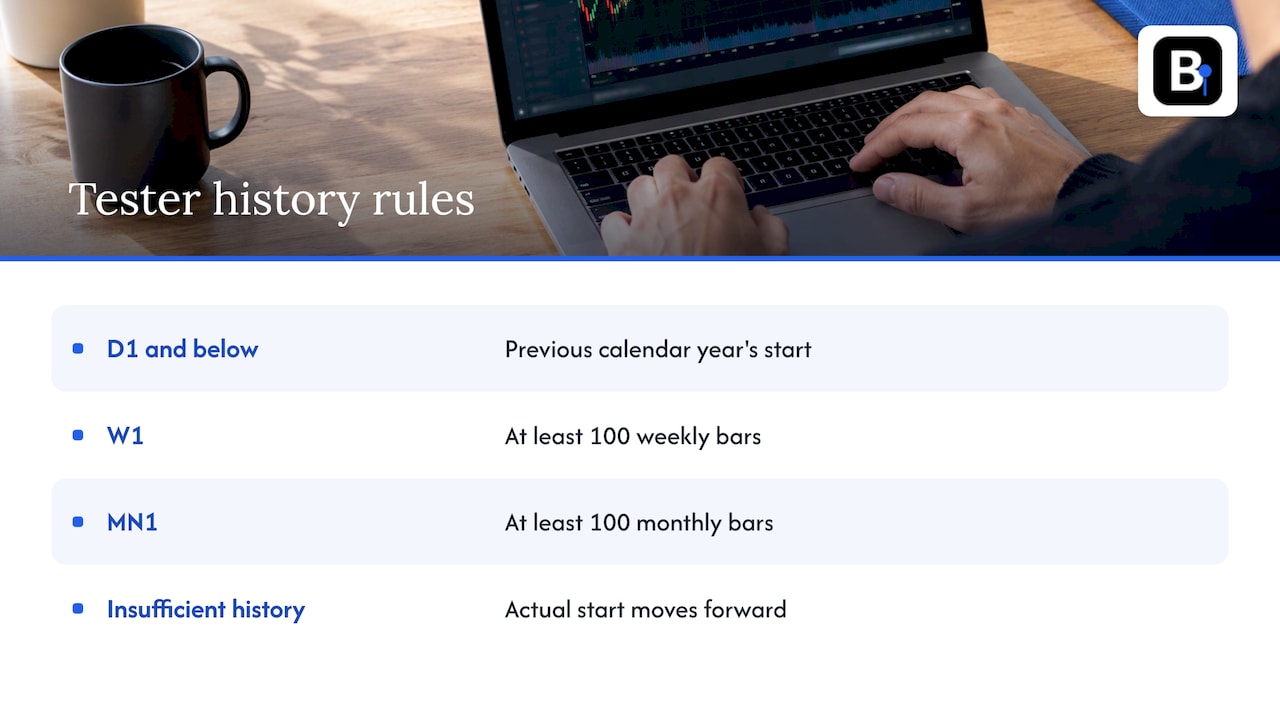
Two tester behaviors affect custom symbols as much as real ones. The tester loads a history buffer before the start date: for D1 and below, from the beginning of the previous calendar year; for W1 at least 100 weekly bars; for MN1 at least 100 monthly bars. And if the available history is insufficient, the tester automatically moves the actual start date forward to the nearest point that satisfies the requirements (MetaTrader 5 help).
The consequence is simple. If you import data starting 1 March and ask for a test from 1 March, the report may quietly begin later. Import at least a year of history before the first date you care about, and read the tester journal to confirm the real start.
If your EA trades several symbols, build each custom symbol with the same clock and the same specification discipline, then read our notes on multi-symbol backtesting. Mismatched time zones across symbols are a classic cause of phantom correlation.
Our perspective: clean minute bars first, clever setup second
We collect and verify minute-bar data for a living, and the same pattern shows up in the support questions we get from custom-symbol users. Almost nobody struggles with the Create Custom Symbol button. They struggle with what goes into the symbol afterwards: a file whose clock nobody documented, duplicated minutes from merging two sources, or a series with unexplained adjustments.
Our view is that the data should be verified bar by bar before it ever reaches MT5, and that every adjustment, such as futures back-adjustment or a time shift, should be documented so you can reproduce it. That standard applies equally to a human reading a chart and to an AI-driven workflow that generates and tests hundreds of strategies unattended. A model will happily optimize against a bad print.
The terminal gives you the tools to build the symbol. It cannot tell you whether the bars are true. Treat the import as the last step of a data process, not the first step of a test.
— Start
Ready-to-import data for your custom symbols
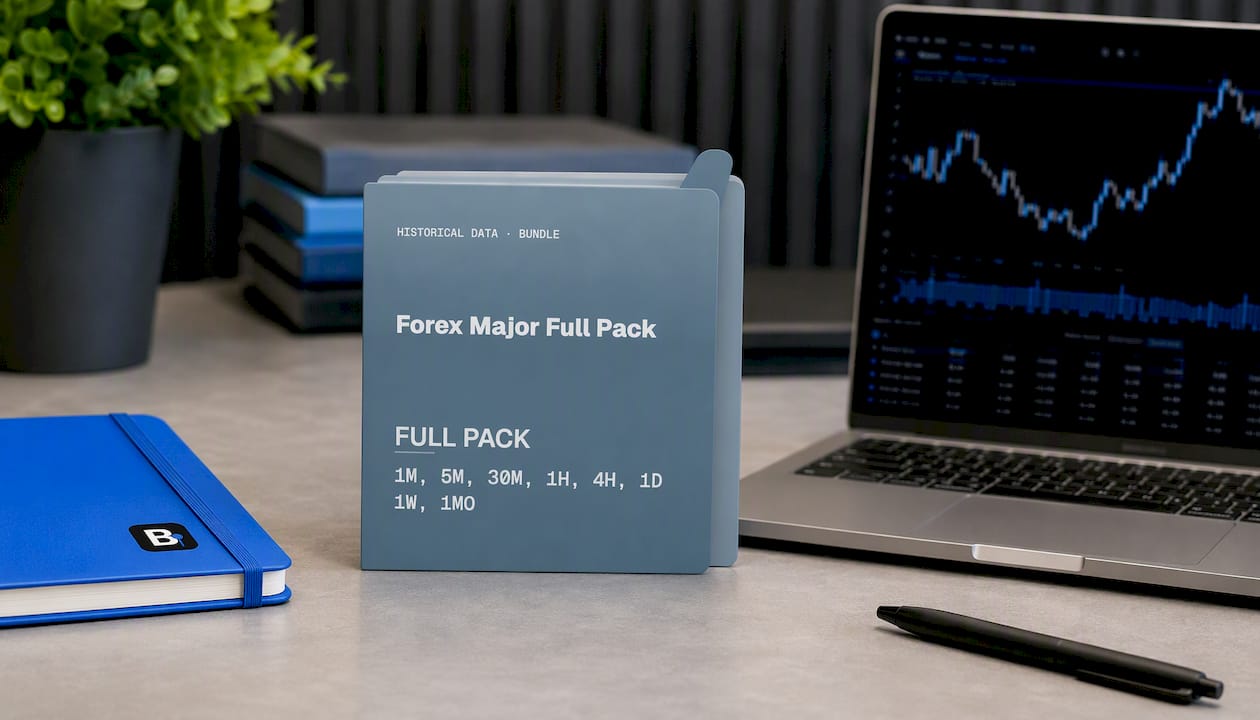
If you would rather not clean and time-align files yourself, our historical data sets are minute-bar intraday history since 2014 across forex, metals, stock indices, bonds and commodities, prepared to import straight into MT4 and MT5. Starting with currencies, the Forex Major Full Pack bundles the major pairs in one download. For ongoing access, the Annual Plan is €119 per year. Engineers who collect the data answer support questions, including the time zone one.
Common mistakes and quick fixes
- Chart is empty after import. Check digits, separator and skipped rows first. A wrong separator makes the whole file parse as one column.
- History vanished after you edited the symbol. You changed tick size or value, charting mode, point value or accuracy. Re-import.
- Higher timeframes look wrong. All other timeframes are built from the minute bars, so fix the minute data and they follow.
- Backtest starts later than requested. The tester moved the start date to satisfy its history requirements. Import more history before your start date.
- Results differ from the broker's symbol. Compare spread, swap, contract specification and clock before blaming the strategy.
- Signals fire at odd hours. Re-check Shift and the daylight saving switch dates.
FAQ
How do I create a custom symbol in MT5?
Right-click in Market Watch, open Symbols, and click Create Custom Symbol. You can copy parameters from a similar instrument and modify them. Finish the specification, then import your price data.
Why did my imported history disappear?
Changing the tick size or value, charting mode, point value or accuracy deletes the minute and tick history of a custom symbol. Changing the formula does the same for synthetic symbols. Set everything first, then import again.
What does the Shift option do in the import dialog?
It applies a time shift in hours to the imported data, which is meant for files saved in another time zone. It changes timestamps only, not prices. Remember that one fixed shift cannot follow daylight saving changes.
Can I import a CSV file into a custom symbol?
Yes. MT5 imports from any text file or from HST files, on the Bars or Ticks tab. You set the file path, separator and the number of columns and rows to skip. Duplicate timestamps and out-of-order ticks count as errors, so audit the file first.
Sources
- Custom Financial Instruments, MetaTrader 5 Help
- How the Tester Downloads Historical Data, MetaTrader 5 Help
- Custom Symbols, MQL5 Reference
Recommended
- How to Load Data in MT5: 4 Steps to Import Historical Data in MetaTrader 5
- Stop Broken Candles in Two Minutes When Importing CSV into MT5
- Resolve Symbols with Import Ready Instrument Mapping Data for MT4/MT5
Related resources
Explore BacktestMarket's Expert Advisor robots to put the ideas in this article into practice.